Casual User Guide 
Version: 2.16.2
Copyright © 2024-2026 Charles Y. Choi
Casual is a project to re-imagine the primary user interface for Emacs using keyboard-driven menus.
Emacs has many commands that are easy to forget if not used frequently. Menus are a user interface (UI) affordance that offers discoverability and recognition. While menus are commonly associated with mouse-driven UI, the inclusion of Transient ((transient)Top) in Emacs core allows for building menus that are keyboard-driven instead. This appeals to users that prefer keyboard-driven workflows.
Casual organizes itself primarily around the different built-in modes Emacs provides. For each mode Casual supports, there is a bespoke designed library of Transient menus for that mode’s command set.
Casual has no aims to be a mutually exclusive user interface. All existing user interfaces to commands (keybinding, mini-buffer prompt, mouse menus) are still available to the user.
To learn more about the motivations and design considerations for Casual and to see it at work, please watch the presentation “Re-imagining the Emacs User Experience with Casual Suite” from EmacsConf 2024.
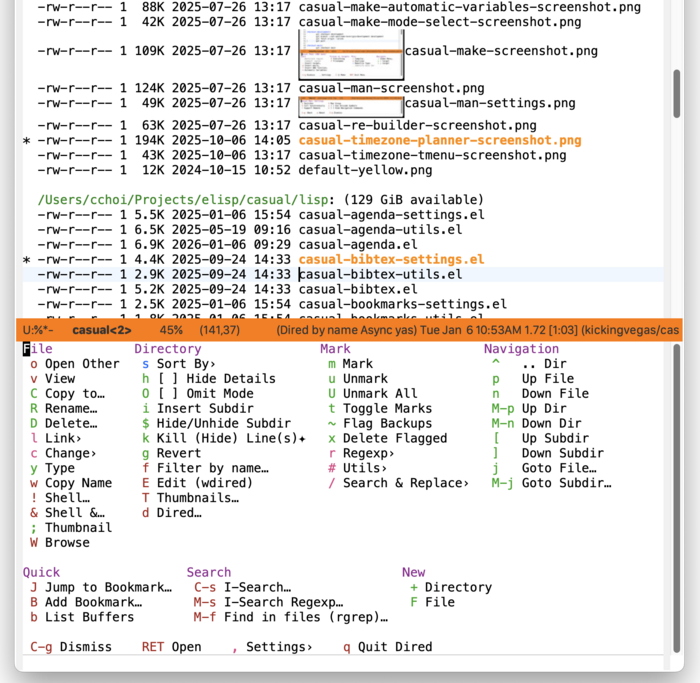
Example Casual menu - Dired
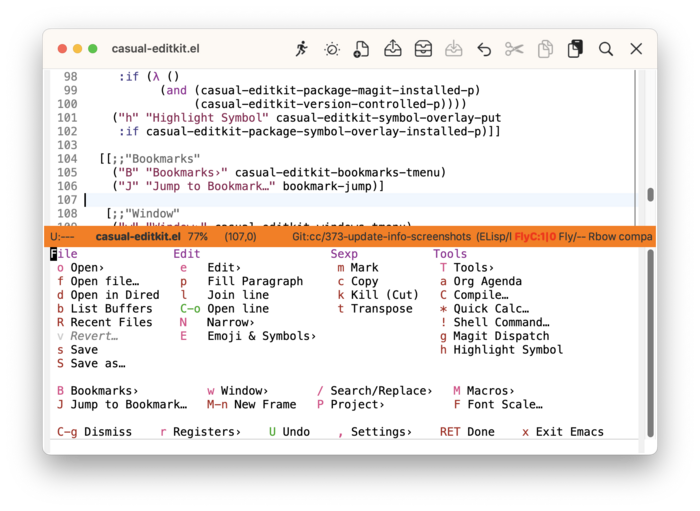
Example Casual menu - EditKit
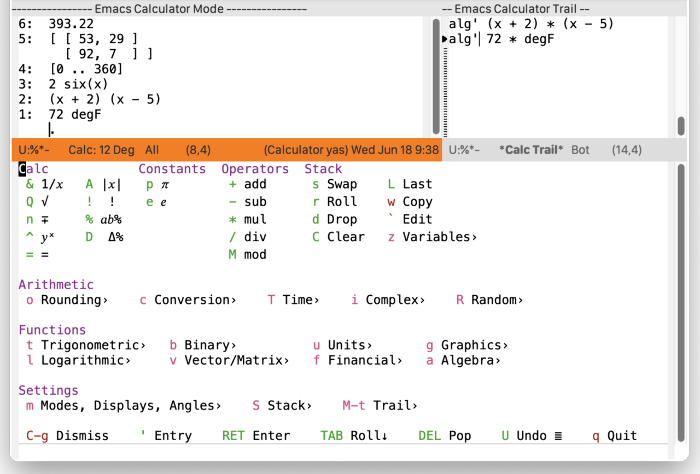
Example Casual menu - Calc
It costs money to make, enhance, and maintain Casual as ideologically free software. If you enjoy using Casual, please buy me a coffee to help support its development and maintenance.

https://www.buymeacoffee.com/kickingvegas
Table of Contents
- 1 Introduction
- 2 Requirements
- 3 Install
- 4 UX Conventions
- 5 Casual Modes
- 5.1 Agenda
- 5.2 BibTeX
- 5.3 Bookmarks
- 5.4 Calc
- 5.5 Calendar
- 5.6 Compile
- 5.7 CSS
- 5.8 CSV
- 5.9 Dired
- 5.10 Ediff
- 5.11 EditKit
- 5.11.1 EditKit Install
- 5.11.2 EditKit Usage
- 5.11.2.1 Register commands
- 5.11.2.2 Edit commands
- 5.11.2.3 Window management
- 5.11.2.4 Search & Replace commands
- 5.11.2.5 Spell Commands
- 5.11.2.6 Open commands
- 5.11.2.7 Project commands
- 5.11.2.8 Bookmark commands
- 5.11.2.9 Emoji & Symbol Insertion
- 5.11.2.10 Tool commands
- 5.11.2.11 Narrow/Widen Commands
- 5.11.2.12 Macro
- 5.11.2.13 EditKit Settings
- 5.12 Elisp
- 5.13 Eshell
- 5.14 EWW
- 5.15 Help
- 5.16 HTML
- 5.17 IBuffer
- 5.18 Image
- 5.19 Info
- 5.20 I-Search
- 5.21 Ispell
- 5.22 Make
- 5.23 Man
- 5.24 Org
- 5.25 RE-Builder
- 5.26 Timezone
- 6 Customization
- 7 Feedback & Discussion
- 8 Sponsorship
- 9 About Casual
- 10 Acknowledgments
- 11 Main Index
- 12 Variable Index
1 Introduction 
1.1 Motivations 
Goals 
- To provide a keyboard-driven menu UI toolkit for common Emacs commands.
- To allow for casual discovery and use of infrequently used Emacs commands.
- To be a frequently used interface for modes supported by Casual.
Non-Goals 
- Full coverage of all Emacs commands.
Casual is not intended to be a power user tool nor is it intended to be a replacement for mouse-driven menus. Casual has no intent to exhaustively cover all modes available in Emacs with keyboard-driven menus.
- Strict adherence to Emacs command naming.
While Casual is mostly in alignment with Emacs command naming, there are cases where it will make an opinionated change if the name is deemed too vague or idiomatic.
- No intention is made by Casual to help on-board users to the existing default bindings of a mode, nor cater to users who already know them.
That said, many existing default Emacs bindings are replicated in Casual. Such correspondence should be considered incidental.
- UX Stability (for now).
Given that Casual is early in its life-cycle, expect changes to its user experience in terms of menu hierarchy and keybinding choices in future releases.
Editorially, all design decisions for Casual are ultimately the opinion of Charles Y. Choi.
1.2 Transient Conventions 
Casual is built using Transient menus and as such adopts its default behavior.
Each menu item has a key and a label. The key is what is typed by the user to select the menu item. A key can be prefixed with a meta M- or control C- key.
Transient supports nested menus. Exiting a menu can be done in two ways:
- C-g (
transient-quit-one) will exit the current sub-menu and return you back to its parent menu. - C-q (
transient-quit-all) will exit you completely from a Transient menu stack.
If a mouse is available, a menu item can be selected by moving the mouse cursor over its label and pressing down button 1.
Pressing the ? key or C-h will toggle help for all the menu items. Press the key of interest to get help for it.
When a Transient menu is raised, a command prefix argument (C-u) and an optional argument can be entered before selecting a menu item. Menu items which particularly use a command prefix are annotated with the ✦ glyph. The command prefix can be cancelled with C-g.
For Transient menus that offer setting different values, the following bindings will allow you save them:
- C-x s (
transient-set)Saves the value of the active transient for this Emacs session.
- C-x C-s (
transient-save)Saves the value of the active transient persistently across Emacs sessions.
- C-x C-k (
transient-reset)Clears the set and saved values of the active transient.
References 
2 Requirements 
Casual requires Emacs 30.1+, Transient 0.9.0+, csv-mode 1.27+.
Certain menus require more installed software:
- Casual Dired: GNU Coreutils
- Casual Image: ImageMagick 6+
3 Install 
Standard installation of the casual package can be done from the following distribution sites:
Configuration of a particular Casual user interface is performed per mode. Go to the Install section for a mode of interest below for guidance on its configuration.
- Agenda
- BibTeX
- Bookmarks
- Calc
- Calendar
- Compile (Grep)
- CSS
- CSV
- Dired
- Ediff
- EditKit
- Elisp
- Eshell
- EWW
- Help
- HTML
- IBuffer
- Image
- Info
- I-Search
- Ispell
- Make
- Man
- Org
- Re-Builder
- Timezone
3.1 A Note on Package Dependencies 
Casual requires a recent installation of Transient 0.9.0+ from either ELPA or MELPA. If your version of Emacs is ≤ 30 but also includes Transient as a built-in package, you will need to set the customizable variable package-install-upgrade-built-in to t to enable updating it via package.el. Set this variable and proceed with installing Casual. Alternately invoking package-install with a prefix (C-u) will temporarily coerce the update of dependent built-in packages (example: C-u M-x package-install casual).
If you already have the latest version of Magit installed (via non-GNU ELPA or MELPA), you can bypass the above instruction as Magit already includes the Transient package as a dependency.
3.2 Upgrading to Casual 1.x to 2.x 
If you have been using an earlier version 1.x of Casual, thank you. Please use the following guidance:
3.2.1 If you do not use use-package to configure Casual 
Before installing Casual, you should update all of your existing Casual packages. This is most easily done via the package menu buffer ((emacs)Package Menu) . After updating your packages, install the casual package.
Migrate your existing Casual packages from 1.x to 2.x by running the following commands:
M-x load-library casual
M-x casual-upgrade-base-to-version-2
Any Casual v1.x packages that have been superseded by this package will be uninstalled.
While not necessary, it is recommended to run M-x package-autoremove to purge any dangling dependent packages. Cautious readers can choose to audit any packages that are targeted to be removed.
3.2.2 If you have used use-package to configure Casual 
For version 2.x going forward, I (Charles Choi) have decided to not offer any documented guidance on using use-package to configure Casual due my lack of expertise in using it. I leave it to more skilled readers to determine how to best use use-package ((use-package)Top) for their configuration. Please also note that this is not a prohibition on using use-package with Casual. I am simply admitting that I don’t know how to use it.
That said, if you have used :ensure t to install a superseded package, you must remove that configuration. After doing so, please follow the above instructions for installing casual.
4 UX Conventions 
The Casual menus share common user experience (UX) conventions to facilitate usability. This section details this.
Common Menu Navigation 
Casual organizes a mode’s command set into a menu hierarchy. As the user descends down different menu levels, the user is given the option to dismiss the current menu or to dismiss completely all menu levels descended. Transient provides a standard convention for menu dismissal via the C-g (transient-quit-one) and C-q (transient-quit-all) commands.
Casual makes explicit the display of C-g and C-q at the bottom of its menus, which differs from the default behavior of Transient.
Users who wish to have them hidden can set the customizable variable casual-lib-hide-navigation to a non-nil value. This can be changed from a Casual mode-specific settings menu.
Settings Menu 
Most all Casual main menus support invoking a mode-specific settings menu via the binding ,.
Unicode Symbol Support 
The customizable variable named casual-lib-use-unicode which when non-nil will inform Casual menus to use Unicode symbol labels whenever supported. This can be changed from Casual mode-specific settings menu.
If casual-lib-use-unicode is set to t, it is also recommended that the variable transient-align-variable-pitch also be set to t.
Common Key Bindings 
Listed below are keybindings which are common among Casual menus.
- J Jump to Bookmark…
Casual places great emphasis on using Emacs Bookmarks to track different places of note. The binding J is used in many main menus to support this.
- , Settings›
Many modes have settings specific to them. The binding , is used in many main menus to support the configuration of mode-specific settings.
- j Goto… (mode specific)
Many modes provide a list of items. If a command exists that allows the user to jump to a specified item, the binding j is mapped to it.
- n Next, p Previous
For modes that provide a list of items, navigation to a next or previous item is bound to n and p respectively.
- [ Next Section, ] Previous Section
For modes that organize items into sections, navigation to a next or previous section is bound to [ and ] respectively.
Label Conventions 
Casual annotates menu labels with the following conventions:
- ‘…’
If the label ends with an ellipsis, then the command will prompt the user for input.
- ‘›’
If the label ends with a right-pointing arrow, then the item will raise a sub-menu.
- ‘✦’
If the label ends with the glyph ✦ (BLACK FOUR POINTED STAR), then the command supports a prefix C-u.
- ‘ⓘ’
If the label starts with the glyph ⓘ (CIRCLED LATIN SMALL LETTER I), then the command will invoke the Info reader.
Menu Naming Conventions 
To distinguish Transient menu (prefix) definitions from existing Emacs menu definitions using keymaps (elisp#Menu Keymaps), Casual uses the naming suffix -tmenu.
5 Casual Modes 
Casual employs the convention of using the same keybinding to invoke a mode-specific main menu. This keybinding is re-used for each mode-specific keymap. The document recommends the default keybinding C-o for this purpose. Users who prefer a different binding are always free to use another.
Casual is organized into different libraries typically using the naming convention of casual-<mode name>. Each library has within it a “main menu” which serves as the top level interface to access functions related to that mode. All main menus are auto-loaded, which means that it is not necessary to include a require call to load that library.
The following modes are supported by Casual:
- Agenda
- BibTeX
- Bookmarks
- Calc
- Calendar
- Compile
- CSS
- CSV
- Dired
- Ediff
- EditKit
- Elisp
- Eshell
- EWW
- Help
- HTML
- IBuffer
- Image
- Info
- I-Search
- Ispell
- Make
- Man
- Org
- RE-Builder
- Timezone
5.1 Agenda 
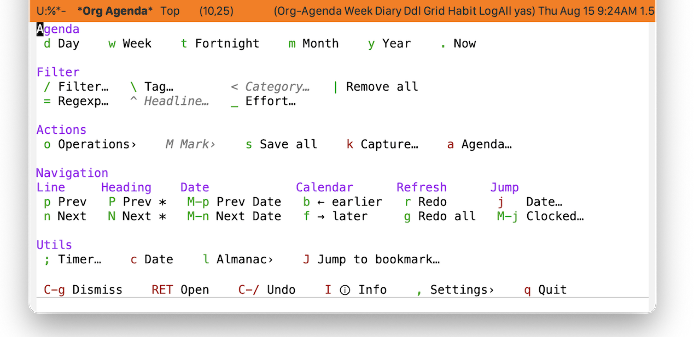
Casual Agenda (library: casual-agenda) is a user interface for Org Agenda ((org)Agenda Views), a feature of Emacs Org Mode ((org)Top) to help plan your day. Its top-level library is casual-agenda.
5.1.1 Agenda Install 
Add these lines to your Emacs initialization file with your binding of preference.
(keymap-set org-agenda-mode-map "C-o" #'casual-agenda-tmenu)
Use these bindings to configure Org Agenda to be consistent with bindings used by Casual Agenda. This is optional.
; bindings to make jumping consistent between Org Agenda and Casual Agenda
(keymap-set org-agenda-mode-map "M-j" #'org-agenda-clock-goto)
(keymap-set org-agenda-mode-map "J" #'bookmark-jump)
5.1.2 Agenda Usage 
The main menu for Casual Agenda is casual-agenda-tmenu. It is divided into five sections:
- Agenda
Modify the view duration (day, week, year)
- Filter
Filter displayed headlines with different criteria
- Actions
Perform an activity on a headline, create/capture a headline or even generate a different agenda view.
- Navigation
move the point to where you want it to be.
- Utils
Set a timer, get almanac info.
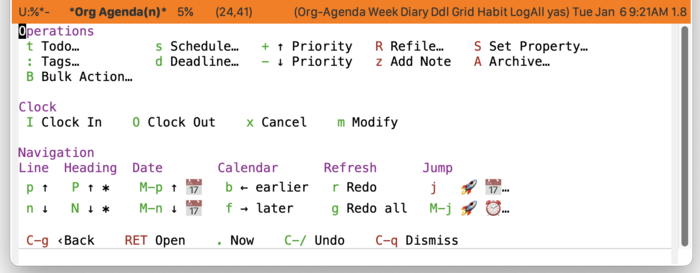
Operating on Headlines (casual-agenda-operations-tmenu) 
Use “o Operations›” from casual-agenda-tmenu to change a headline’s attributes such as TODO state, scheduling, tags, and priority. The following menu will be displayed.
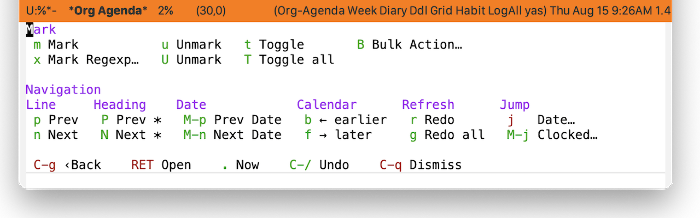
Marking Headlines (casual-agenda-mark-tmenu) 
Use “M Mark›” menu from casual-agenda-tmenu to mark different headlines and perform a bulk action on them.
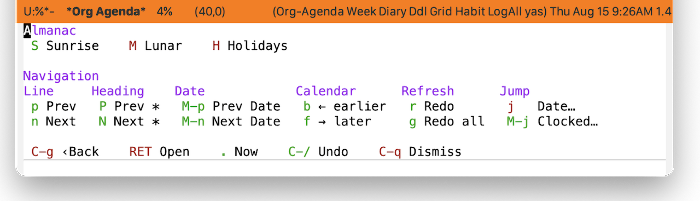
Almanac (casual-agenda-almanac-tmenu) 
Get sunrise/sunset times, lunar cycle dates, and holidays with respect to a date via the “l Almanac›” menu from casual-agenda-tmenu.
Changing Modes and Settings 
Agenda views have different display modes and behavior that can be modified from the “, Settings›” menu from casual-agenda-tmenu.
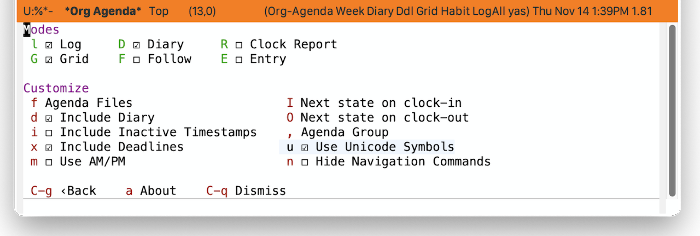
Agenda Unicode Symbol Support 
By enabling “u Use Unicode Settings” from the Settings menu, Casual Agenda will use Unicode symbols as appropriate in its menus.
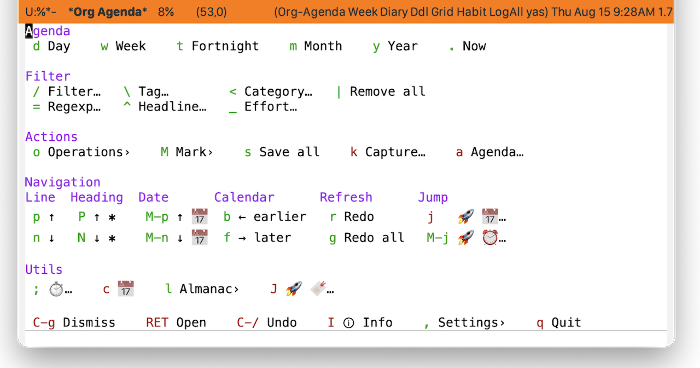
For more info on using Unicode symbols, please refer to UX Conventions.
5.2 BibTeX 
Casual BibTeX (library: casual-bibtex) is an opinionated user interface for BibTeX mode (info “(emacs) TeX Mode”), a major mode for working with BibTeX files (BibTeX Guide).
A BibTeX file is typically named using the suffix .bib to identify its file type.
To appreciate the benefits of Casual BibTeX, it helps to understand what BibTex is and what BibTeX mode offers.
BibTeX is a database schema for bibliography data. This data is best understood as a collection of records (or entries) that is stored in a plain-text file. Multiple text files can be supported. While most tooling for BibTeX is tuned for LaTeX documentation workflows, BibTeX can be used as generalized storage for bibliography data. Org provides extensive support for citing using BibTeX (info “(org) Citation handling”).
As a BibTeX file is plain-text based, any plain-text editor can be used to edit it. This flexibility is problematic as plain-text editors will not enforce the schema of BibTeX by default.
Emacs distinguishes itself from other editors in that support for working with BibTeX files is built-in with the package bibtex.
The bibtex package provides commands for both navigating and editing BibTeX data structures (entries and the fields within an entry) in a quasi-“form-based” way.
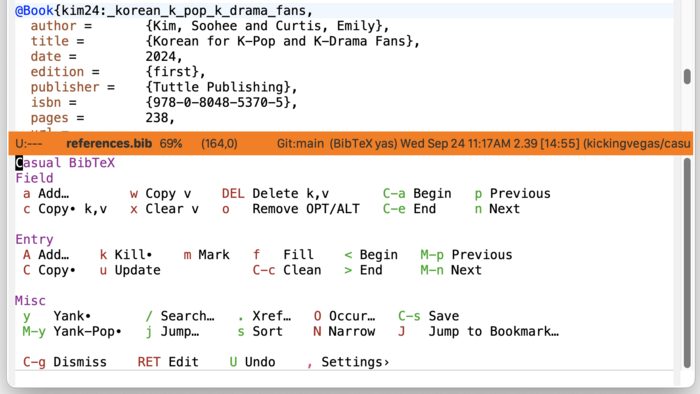
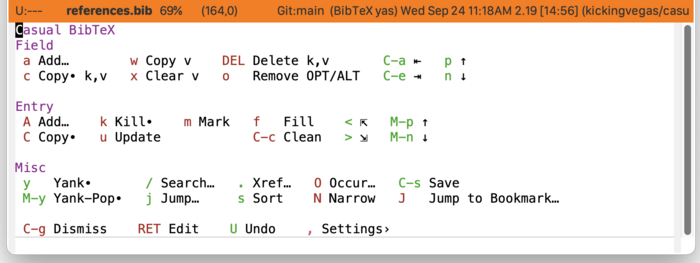
Casual BibTeX organizes and augments BibTeX mode commands into a keyboard-driven menu.
The screenshot below shows the menu for Casual BibTeX.
5.2.1 BibTeX Install 
In your initialization file, bind the Transient casual-bibtex-tmenu to your key binding of preference in bibtex-mode-map. The binding M-m is suggested so as to not conflict with C-o that is bound to casual-editkit-main-tmenu. (EditKit Install)
(keymap-set bibtex-mode-map "M-m" #'casual-bibtex-tmenu)
casual-bibtex-tmenu is opinionated in making editing and navigation commands emulate a form-based interface (form-based interface) in a bibtex-mode window. The following keybindings are recommended to support consistent behavior between bibtex-mode-map and casual-bibtex-tmenu.
(add-hook 'bibtex-mode-hook 'hl-line-mode)

(keymap-set bibtex-mode-map "<TAB>" #'bibtex-next-field)
(keymap-set bibtex-mode-map "<backtab>" #'previous-line)

(keymap-set bibtex-mode-map "C-n" #'bibtex-next-field)
(keymap-set bibtex-mode-map "M-n" #'bibtex-next-entry)
(keymap-set bibtex-mode-map "M-p" #'bibtex-previous-entry)

(keymap-set bibtex-mode-map "<prior>" #'bibtex-previous-entry)
(keymap-set bibtex-mode-map "<next>" #'bibtex-next-entry)

(keymap-set bibtex-mode-map "C-c C-o" #'bibtex-url)
(keymap-set bibtex-mode-map "C-c C-c" #'casual-bibtex-fill-and-clean)

(keymap-set bibtex-mode-map "<clear>" #'bibtex-empty-field)
(keymap-set bibtex-mode-map "M-<clear>" #'bibtex-kill-field)
(keymap-set bibtex-mode-map "M-DEL" #'bibtex-kill-field)
5.2.2 BibTeX Usage 
The main menu for Casual BibTeX (casual-bibtex-tmenu) is organized into the following sections:
- Field
Commands to edit or navigate fields within an entry.
- Entry
Commands to edit or navigate entries within a BibTeX file.
- Misc
Miscellaneous BibTeX commands.
5.2.2.1 BibTeX Navigation 
Casual BibTeX re-purposes conventional Emacs navigation bindings so that instead of navigating a text edit buffer, it instead navigates BibTeX structures (entry, field).
The following table shows the bindings for BibTeX navigation.
| Binding | Command |
|---|---|
| C-n | bibtex-next-field (bound to n in menu) |
| C-p | previous-line (bound to p in menu) |
| C-a | casual-bibtex-beginning-of-field |
| C-e | casual-bibtex-end-of-field |
| M-p | bibtex-previous-entry |
| M-n | bibtex-next-entry |
| < | bibtex-beginning-of-entry |
| > | bibtex-end-of-entry |
5.2.2.2 BibTeX CRUD 
In Casual BibTeX, CRUD (CReate, Update, Delete) operations for entry and field structures are intended to be achieved through their respective commands. This contrasts with manual editing of a buffer to achieve the same end, which is prone to errors.
Creating an Entry 
To create a new entry, use the “A Add…” command. You will be prompted in the mini-buffer with completion support for the entry type. This new entry will be inserted relative to existing entry where the point is with all fields supported by the entry type enumerated. Fields with the temporary prefix of “ALT” or “OPT” denote a field that is alternate or optional. Use the command “o Remove OPT/ALT” to remove this prefix.
When all desired information for a BibTeX entry has been entered, it can be “cleaned” using the command “C-c Clean”. Cleaning an entry will:
- Generate a unique citation key, if needed.
- Remove all unused fields.
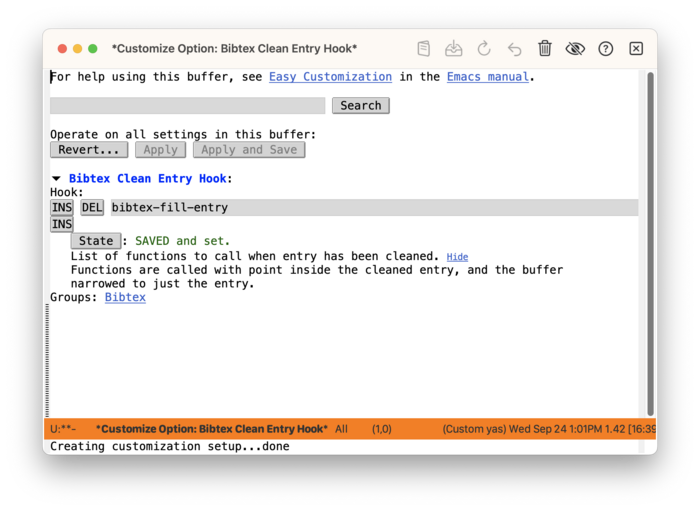
By default, cleaning an entry will not format (or “fill”) the entry. This can be changed by setting the customizable variable bibtex-clean-entry-hook to include the command bibtex-fill-entry. This can be done from “Hooks” section in the Settings menu (Settings).
Creating a Field 
To create a new field, use the “a Add…” command. You will be prompted in the mini-buffer with completion support for the field type. This new field will be inserted relative to existing field where the point is.
There are two components to a field:
- key
the field name, referred to in the menu as ’k’.
- value
the value of the field, referred to in the menu as ’v’.
A “brute-force” command to enumerate all fields for an entry is provided by the “u Update…” command. Clean the entry to remove all unpopulated fields after using it.
BibTeX mode has its own kill-ring 
BibTeX has its own kill-ring variable bibtex-entry-kill-ring which the following menu commands use:
- c Copy∙ k,v
Copy the whole field, both key and value.
- C Copy∙
Copy the entry.
- k Kill∙
Kill the entry.
- y Yank∙
Yank the entry or field.
- M-y Yank-Pop∙
Yank-pop the entry or field.
The “∙” annotation in a menu label denotes commands that do not use the kill-ring, but bibtex-entry-kill-ring instead.
Search and Jump 
The ability to search and jump to a position in a BibTeX database are offered by the following menu commands:
- / Search…
Search the BibTeX database.
- j Jump…
Move point to a citation key.
5.2.2.3 BibTeX Settings 
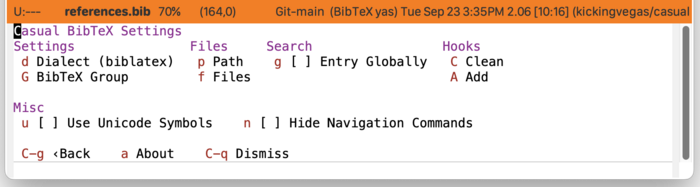
The menu casual-bibtex-settings-tmenu offers access to commonly configured BibTeX mode settings.
Settings are organized into the following sections:
- Settings
Miscellaneous BibTeX settings.
- Files
File and path related settings.
- Search
Search settings.
- Hooks
Hook settings for cleaning and adding.
BibTeX Clean Hook 
By default BibTeX mode does not format (or “fill”) an entry upon cleaning. To support filling an entry upon clean, add the command bibtex-fill-entry to bibtex-clean-entry-hook using the “C Clean” command as shown below:
5.2.2.4 BibTeX Mode Unicode Symbol Support 
By enabling “u Use Unicode Symbols” from the Settings menu, Casual BibTeX will use Unicode symbols as appropriate in its menus.
For more info on using Unicode symbols, please refer to UX Conventions.
5.3 Bookmarks 
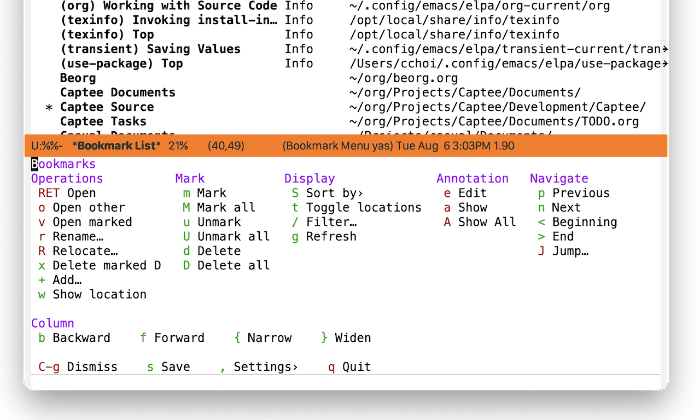
Casual Bookmarks (library: casual-bookmarks) is a user interface for the Emacs Bookmarks list ((emacs)Bookmarks). Its top-level library is casual-bookmarks.
5.3.1 Bookmarks Install 
To install Casual Bookmarks, add the following line to your Emacs initialization file with your binding of preference.
(keymap-set bookmark-bmenu-mode-map "C-o" #'casual-bookmarks-tmenu)
Use these keybindings to configure the bookmark list to be consistent with keybindings used by Casual Bookmarks.
(keymap-set bookmark-bmenu-mode-map "J" #'bookmark-jump)
Casual Bookmarks also includes the keymap casual-bookmarks-main-menu which inserts a Bookmarks menu into the main menu bar as shown below.
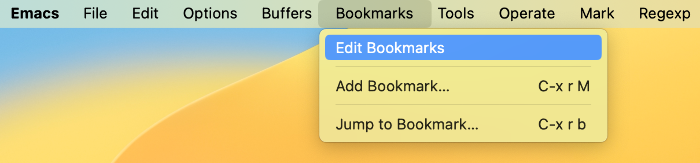
To enable this, add the following configuration to your initialization file.
(require 'casual-bookmarks)
(easy-menu-add-item global-map '(menu-bar)
                    casual-bookmarks-main-menu
                    "Tools")
While not necessary, having the current bookmark highlighted is convenient. Enable hl-line-mode for the bookmark list as shown below.
(require 'hl-line)
(add-hook 'bookmark-bmenu-mode-hook #'hl-line-mode)
Finally, customize the variable bookmark-save-flag to the value 1 to ensure that your bookmark changes are always saved.
The above guidance largely extends the work done in the blog post Using Bookmarks in Emacs like you do in Web Browsers.
5.3.2 Bookmarks Usage 
Casual Bookmarks organizes its main menu into the following sections:
- Operations
Commands that can operate on a bookmark such as editing or opening them.
- Mark
Commands that allow for bulk operation on multiple bookmarks.
- Display
Control how bookmarks are displayed and filtered.
- Annotation
Commands for annotating a bookmark.
- Navigation
Commands for navigating to a bookmark.
- Column
Commands to navigate and control the display of the table layout for bookmarks.
Sorting 
Support for sorting the bookmarks list is provided by the menu casual-bookmarks-sortby-tmenu.
Unicode Symbol Support 
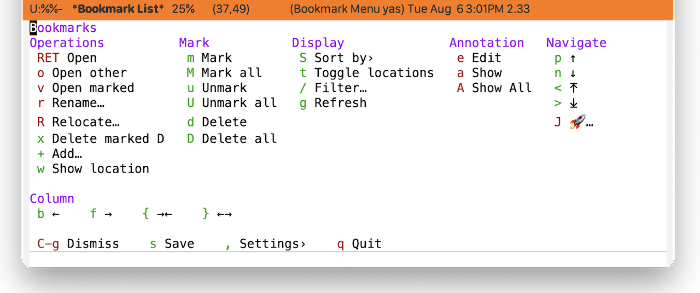
By enabling “u Use Unicode Symbols” from the Settings menu, Casual Bookmarks will use Unicode symbols as appropriate in its menus.
For more info on using Unicode symbols, please refer to UX Conventions.
5.4 Calc 
Casual Calc (library: casual-calc) is a user interface for Emacs Calc ((calc)Top).
5.4.1 Calc Install 
To install Casual Calc, add the following lines to your Emacs initialization file with your binding of preference.
(keymap-set calc-mode-map "C-o" #'casual-calc-tmenu)
(keymap-set calc-alg-map "C-o" #'casual-calc-tmenu)
5.4.2 Calc Usage 
To launch Calc, invoke M-x calc. When the point is in the Calc window, invoke C-o (or a binding of your choosing) to launch the Casual Calc interface.
For nearly all menus, algebraic entry via the ' binding is available, as well as basic calculator operations (addition, subtraction, multiplication, division) and stack operations (pop, enter).
Casual Calc organizes its main menu into the following sections:
- Calc
Commands for common calculator functions.
- Constants
Common math constants.
- Operators
Common math operators.
- Stack
Commands for stack operations.
- Arithmetic
Entry point for sub-menus of commands classified as arithmetic operations.
- Functions
Entry point for sub-menus of commands organized into different classes of functionality.
- Settings
Entry point for sub-menus of commands to configure Calc settings.
Calc Basics 
It helps to know some basics about Calc.
- Calc is a stack-based calculator that supports both RPN and algebraic style entry.
- By default it uses RPN entry, but this can be changed to algebraic.
- Stack based operations are always RPN-style.
- Undo has the keybinding
U, redo isD. - The top of the stack is referred to as
1: - Calc vectors are punctuated with
[and](e.g.[2 3]) Matrix values are represented as vectors within a vector. For example,[[1 0] [0 1]]is a square diagonal matrix. - Calc vector indexes are 1-offset.
- Intervals
- Inclusive intervals are represented as [𝑛..𝑚], where 𝑛 < 𝑚.
- Exclusive intervals are represented as (𝑛..𝑚), where 𝑛 < 𝑚.
- Any combination of lower and upper bounds set to be inclusive or exclusive is supported.
- Complex numbers are entered as (𝑟, 𝑖), where 𝑟 is the real part and 𝑖 is the imaginary.
- Radix numbers are entered as 𝑏#𝑛 where 𝑏 is the base value and 𝑛 is the number. For example entering
2#0101will put5on the stack. - H:M:S values are default entered as ℎ@ 𝑚" 𝑠’.
- Org-mode active timestamps can be entered into Calc.
- The top of the stack (1:) can be edited by pressing the
`key. - Entering a single quote (’) will prompt you for an algebraic entry.
5.5 Calendar 
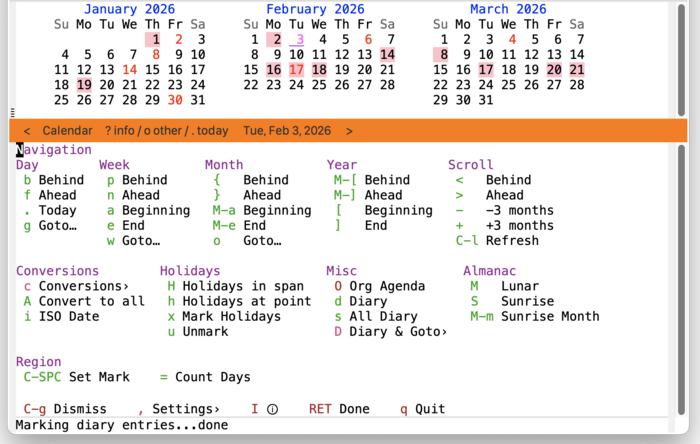
Casual Calendar (library: casual-calendar) is a user interface for Emacs Calendar/Diary. Its top-level library is casual-calendar. Access to numerous calendar and diary commands are made available, most notably support for non-Gregorian calendar systems.
5.5.1 Calendar Install 
The main menu for Casual Calendar (casual-calendar-tmenu) is invoked by the command casual-calendar. Bind this command in the keymap calendar-mode-map as follows in your initialization file.
(keymap-set calendar-mode-map "C-o" #'casual-calendar)
5.5.2 Calendar Usage 
Whenever the calendar window (showing three months) is raised, the Casual user interface is invoked via the command casual-calendar. This command is typically bound to a keybinding (e.g. C-o).
Casual Calendar organizes its main menu into the following sections:
- Navigation
Commands to move the point to a desired date, adjusting the view as necessary.
- Conversions
Commands to convert a date across different calendar systems.
- Holidays
Holiday related commands.
- Misc
Commands related to the Diary and Org Agenda are placed here.
- Almanac
Almanac-related commands such the lunar phase, sunrise/sunset times are found here.
- Region
Support for counting days defined in a region is offered here.
Also made available is access to a Settings menu (more below) and to the Info documentation for calendar.
- Diary & Goto Menu
- Calendar System Date Conversion
- Calendar Settings Menu
- Calendar Unicode Symbol Support
5.5.2.1 Diary & Goto Menu 
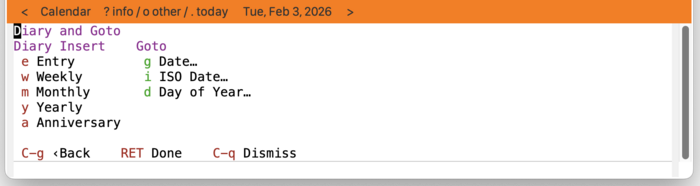
From the main menu, choosing “D Diary & Goto›” will present choices for diary event insertion and to “goto” a particular date via different specifications.
5.5.2.2 Calendar System Date Conversion 
Calendar supports conversion of dates from Gregorian (default) to a number of different calendar systems. Choose “(c) Conversions›” from the main menu to select from a list of such calendars.
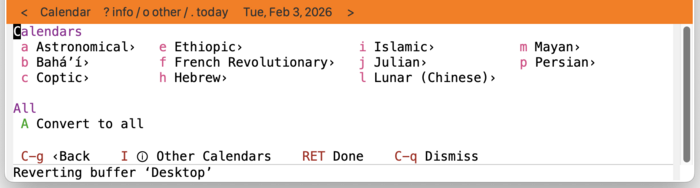
Supported calendar systems:
- Astronomical (
casual-calendar-astro-tmenu) - Bahá’í (
casual-calendar-bahai-tmenu) - Ethiopic (
casual-calendar-ethiopic-tmenu) - French Revolutionary (
casual-calendar-french-tmenu) - Hebrew (
casual-calendar-hebrew-tmenu) - Islamic (
casual-calendar-islamic-tmenu) - Julian (
casual-calendar-julian-tmenu) - Lunar (Chinese) (
casual-calendar-lunar-tmenu) - Mayan (
casual-calendar-mayan-tmenu) - Persian (
casual-calendar-persian-tmenu)
Selecting a calendar system will raise a menu that offers date conversion commands between it and the Gregorian system. In the screenshot below, the Lunar (Chinese) calendar system menu is shown.
To convert a Gregorian date to Lunar (Chinese):
- Move cursor (point) in Calendar window to desired date. (The command “(g) Goto…” can be used to accomplish this.)
- Choose “(c) Date at Cursor”.
To convert a Lunar (Chinese) date to Gregorian:
- Choose “(G) Goto…” and follow the prompts.
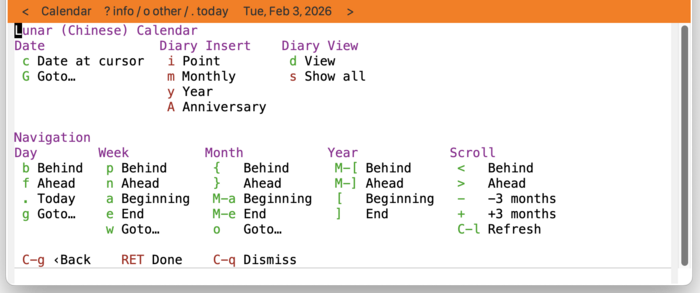
Certain non-Gregorian calendar systems are supported by the diary (Bahá’í, Hebrew, Islamic, Lunar (Chinese)). For such systems, their menus will offer choices to insert diary events.
Note that inserting non-Gregorian diary events require configuration of the variables diary-nongregorian-listing-hook and diary-nongregorian-marking-hook as detailed in Diary Entries using non-Gregorian Calendars ((emacs)Non-Gregorian Diary).
Both of these variables can be configured from the Calendar Settings menu.
5.5.2.3 Calendar Settings Menu 
From the main menu, choosing “, Settings›” will provide a menu (casual-calendar-settings-tmenu) of frequently configured calendar and diary-related variables.
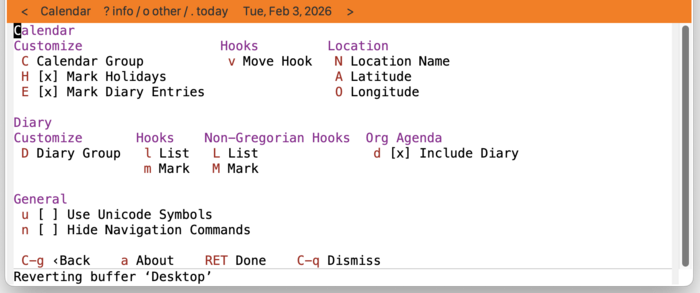
5.5.2.4 Calendar Unicode Symbol Support 
By enabling “u Use Unicode Symbols” from the Settings menu, Casual Calendar will use Unicode symbols as appropriate in its menus.
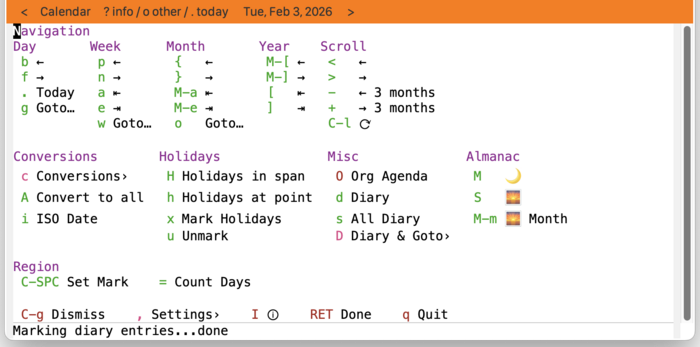
For more info on using Unicode symbols, please refer to UX Conventions.
5.6 Compile 
Casual Compile (library: casual-compile) is a user interface for the output of the compile command ((emacs)Compilation). The output buffer’s major mode is compilation-mode whose commands are surfaced by Casual Compile.
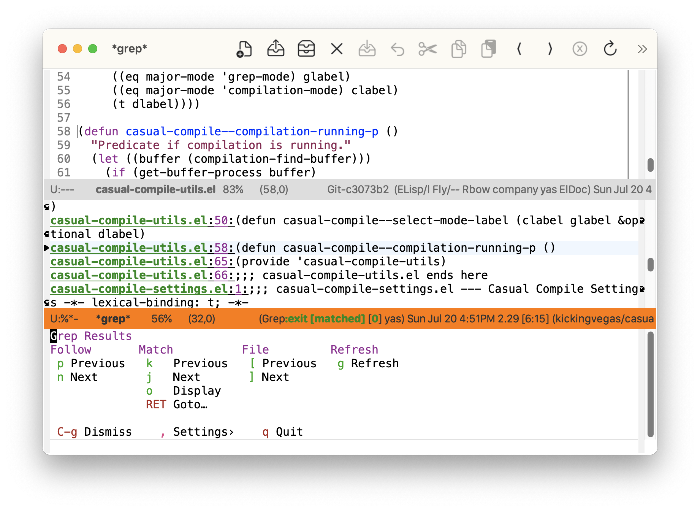
In similar fashion, output of Emacs-wrapped Grep commands ((emacs)Grep Searching) is also supported by Casual Compile. This is because the output of Grep commands use the major mode grep-mode which is derived from compilation-mode.
The screenshot below shows the menu for compilation results.
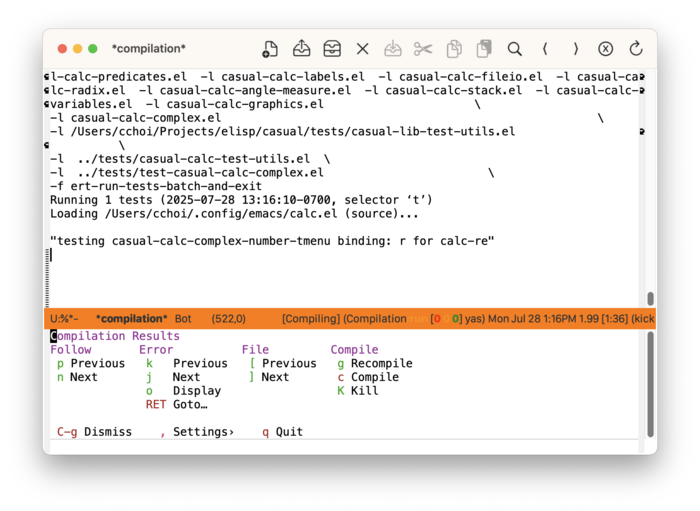
The screenshot below shows the menu for Grep results. Note the menu label changes based on the output mode (in this case grep-mode).
5.6.1 Compile Install 
In your initialization file, bind the Transient casual-compile-tmenu to your key binding of preference. It should be bound in two maps: compilation-mode-map and grep-mode-map.
(keymap-set compilation-mode-map "C-o" #'casual-compile-tmenu)
(keymap-set grep-mode-map "C-o" #'casual-compile-tmenu)
casual-compile-tmenu deviates from the default bindings of compilation-mode-map as shown in the table below to support using a single key on an ‘en.US’ keyboard.
| Default Binding | Casual Binding | Command |
|---|---|---|
| M-p | k | compilation-previous-error |
| M-n | j | compilation-next-error |
| M-{ | [ | compilation-previous-file |
| M-} | ] | compilation-next-file |
| C-o | o | compilation-display-error |
The following keybindings are recommended to support consistent behavior between compilation-mode-map and casual-compile-tmenu.
(keymap-set compilation-mode-map "k" #'compilation-previous-error)
(keymap-set compilation-mode-map "j" #'compilation-next-error)
(keymap-set compilation-mode-map "o" #'compilation-display-error)
(keymap-set compilation-mode-map "[" #'compilation-previous-file)
(keymap-set compilation-mode-map "]" #'compilation-next-file)
Similar treatment for grep-mode-map can be done.
(keymap-set grep-mode-map "k" #'compilation-previous-error)
(keymap-set grep-mode-map "j" #'compilation-next-error)
(keymap-set grep-mode-map "o" #'compilation-display-error)
(keymap-set grep-mode-map "[" #'compilation-previous-file)
(keymap-set grep-mode-map "]" #'compilation-next-file)
5.6.2 Compile Usage 
After running compile, invoke casual-compile-tmenu in the buffer named ‘✳︎compilation✳︎’ using the binding C-o (or your binding of preference).
The following sections are offered in the menu:
- Follow
Navigate the point while opening the location of the error in the source file in another window.
- Error
Error commands for navigation and viewing.
- File
If there are errors in multiple files, navigate to the file.
- Compile
Get compile for different Elisp types. Note that the “k Kill” item is displayed when there is a running job.
If the output window is from a Grep command, casual-compile-tmenu will adjust its labels accordingly as shown below.
Compile Settings 
The menu casual-compile-settings-tmenu provides access to different compilation-mode settings.
Compile Mode Unicode Symbol Support 
By enabling “u Use Unicode Symbols” from the Settings menu, Casual Compile will use Unicode symbols as appropriate in its menus.
For more info on using Unicode symbols, please refer to UX Conventions.
5.7 CSS 
Casual CSS (library: casual-css) is a user interface for css-mode.
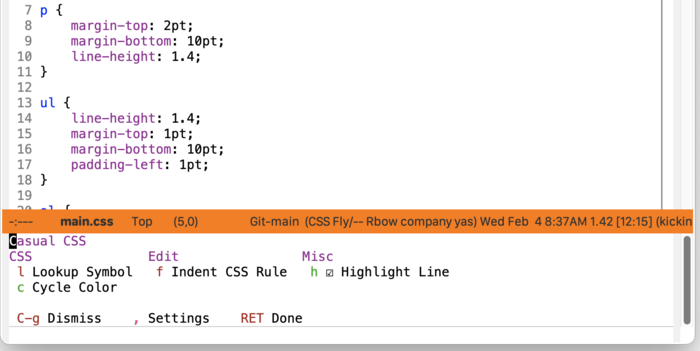
Casual also has support for HTML editing (HTML).
5.7.1 CSS Install 
In your initialization file, bind the Transient casual-css-tmenu to your key binding of preference.
(keymap-set css-mode-map "M-m" #'casual-css-tmenu)
A different binding (M-m) is used as casual-css-tmenu is intended to work alongside with Casual EditKit.
5.7.2 CSS Usage 
The following sections are offered in the menu:
- CSS
CSS specific commands.
- “l Lookup Symbol” will reference the symbol’s documentation from the Mozilla Developer Network (MDN) website.
- “c Cycle Color” should be selected when the point is on a color specification.
- Edit
Editing commands.
- “f Indent CSS Rule” is a call to
fill-paragraphwhose behavior is adjusted forcss-mode.
- “f Indent CSS Rule” is a call to
- Misc
Miscellaneous commands.
- “h Highlight Line” toggles
hl-line-modeto avoid interfering the display of color specifications.
- “h Highlight Line” toggles
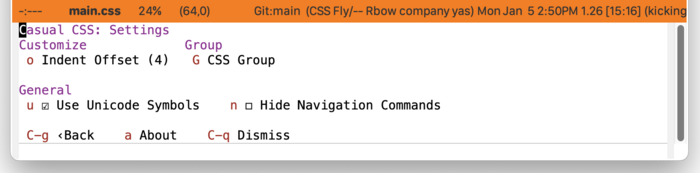
CSS Settings 
The menu casual-css-settings-tmenu provides access to different css-mode settings.
CSS Unicode Symbol Support 
By enabling “u Use Unicode Symbols” from the Settings menu, Casual CSS will use Unicode symbols as appropriate in its menus.
For more info on using Unicode symbols, please refer to UX Conventions.
5.8 CSV 
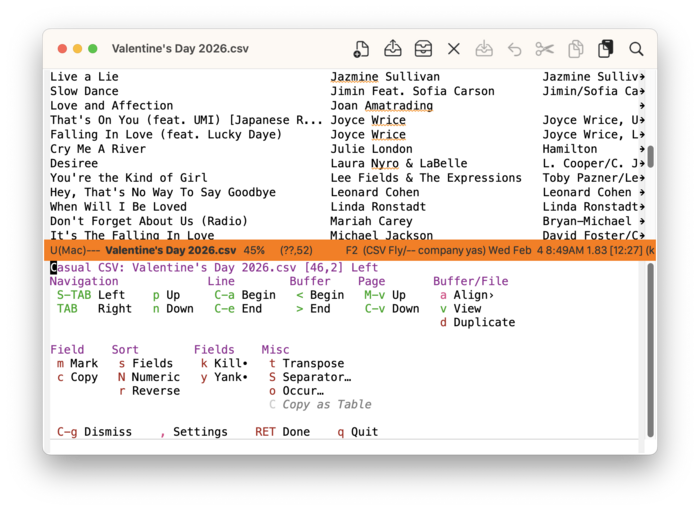
Casual CSV (library: casual-csv) is a user interface for csv-mode, a mode for working with CSV files.
5.8.1 CSV Install 
In your initialization file, bind the Transient casual-csv-tmenu to your key binding of preference.
(keymap-set csv-mode-map "M-m" #'casual-csv-tmenu)
The binding M-m is intended to complement the binding C-o used by EditKit.
While not required, the following configuration is recommended for working with CSV files.
;; disable line wrap
(add-hook 'csv-mode-hook
          (lambda ()
            (visual-line-mode -1)
            (toggle-truncate-lines 1)))

;; auto detect separator
(add-hook 'csv-mode-hook #'csv-guess-set-separator)
;; turn on field alignment
(add-hook 'csv-mode-hook #'csv-align-mode)
5.8.2 CSV Usage 
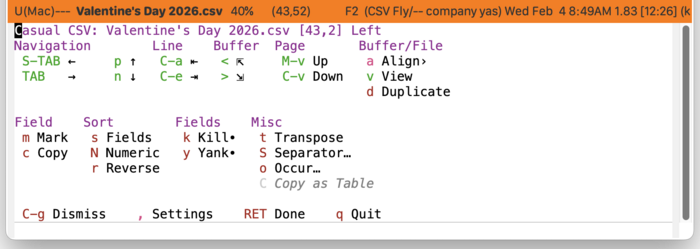
The following sections are offered in the menu:
- Navigation, Line, Buffer
Commands for moving the point, mostly with respect to a field.
- Page
Move up or down a page.
- Buffer/File
Commands associated the current buffer or file, such changing the buffer state from viewable (read-only) to editable (writeable), display alignment, or duplicating the file for subsequent editing.
- Field
Commands to mark or copy a field.
- Sort
Sorting commands. This section is displayed only if the buffer is editable.
- Fields
Kill and yank commands dedicated for CSV mode. Note that these commands do not use the default
kill-ringand are marked with a bullet (•). This section is displayed only if the buffer is editable.- Misc
Miscellaneous commands. Note if a region is selected containing multiple complete rows, the “C Copy as Table” command will reformat the selected rows as an Org table and copy them in the
kill-ringfor subsequent pasting.
CVS View/Edit, Duplicate 
If the buffer is in view (read-only) mode, then only relevant commands are displayed.
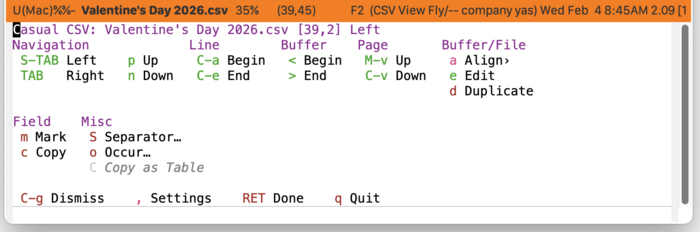
If the buffer is editable, a common to desire to instead work on a copy of the CSV file to avoid making unwanted changes. This can be done using the “d Duplicate” command.
CSV Align 
The display of the CSV buffer can be controlled with the menu casual-csv-align-tmenu.

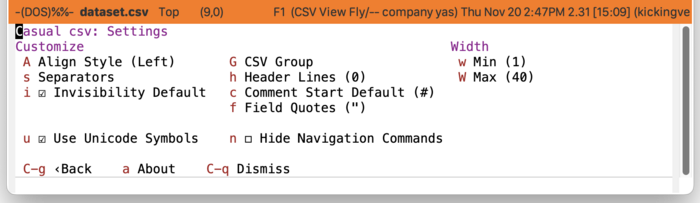
CSV Settings 
The menu casual-csv-settings-tmenu provides access to different csv-mode settings.
CSV Unicode Symbol Support 
By enabling “u Use Unicode Symbols” from the Settings menu, Casual CSV will use Unicode symbols as appropriate in its menus.
For more info on using Unicode symbols, please refer to UX Conventions.
5.9 Dired 
Casual Dired (library: casual-dired) provides a user interface for Dired ((emacs)Dired), the Emacs file manager. Its top-level library is casual-dired.
5.9.1 Dired Requirements 
Casual Dired requires that the ls utility from GNU coreutils ≥ 8.32 be installed.
The following links provide guidance for installing GNU coreutils on different platforms.
5.9.1.1 macOS 
Note that the default packaged ls on macOS is BSD-flavored which is not supported by Casual Dired. Users wishing to use Casual Dired on macOS are recommended to install GNU coreutils and configure their Emacs to point to its version of ls accordingly.
5.9.1.2 Windows 
For users running on Microsoft Windows, use this guidance to configure Emacs to use an external install of ls.
- Git for Windows (includes
lsin Git BASH) - Cygwin
5.9.2 Dired Install 
The main menu for Dired is casual-dired-tmenu. Bind this menu in the keymap dired-mode-map as follows in your initialization file.
(keymap-set dired-mode-map "C-o" #'casual-dired-tmenu)
In addition, it is convenient to have both the sort-by (casual-dired-sort-by-tmenu) and search & replace (casual-dired-search-replace-tmenu) menus bound to s and / respectively.
(keymap-set dired-mode-map "s" #'casual-dired-sort-by-tmenu)
(keymap-set dired-mode-map "/" #'casual-dired-search-replace-tmenu)
Users who frequently work with Emacs Lisp (Elisp) might consider binding a Dired-specific menu (casual-dired-elisp-tmenu) for it.
(keymap-set dired-mode-map "C-c e" #'casual-dired-elisp-tmenu)
Dired Variables 
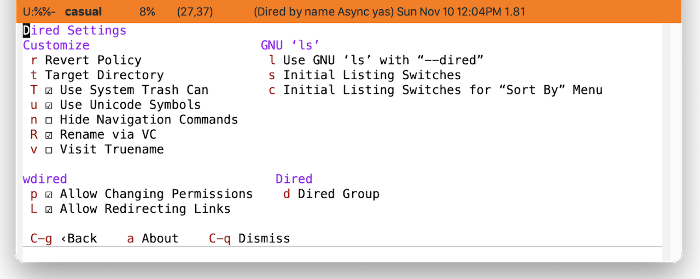
To use Casual Dired, you should have GNU ls installed and configured so that the customizable variable dired-use-ls-dired uses it.
The Casual Dired Settings menu gives access to this via the menu key “l Use GNU ‘ls’ with –dired”.
Configuration 
The Casual Dired menus have several key bindings that differ from what is default in Dired. The following configuration below can be used to align Dired keybindings with menu keys used by Casual Dired.
(require 'dired)
(require 'dired-x)
(require 'wdired)
(require 'hl-line)
(require 'mouse)
(require 'image-dired)
(require 'image-dired-dired)
(require 'casual-dired)

(keymap-set dired-mode-map "C-o" #'casual-dired-tmenu)
(keymap-set dired-mode-map "s" #'casual-dired-sort-by-tmenu)
(keymap-set dired-mode-map "/" #'casual-dired-search-replace-tmenu)
(keymap-set dired-mode-map "C-c e" #'casual-dired-elisp-tmenu)

(add-hook 'dired-mode-hook 'hl-line-mode)
(add-hook 'dired-mode-hook 'context-menu-mode)
(add-hook 'dired-mode-hook 'dired-async-mode)
(add-hook
 'dired-mode-hook
 (lambda ()
   (setq-local mouse-1-click-follows-link 'double)))

(keymap-set dired-mode-map "M-o" #'dired-omit-mode)
(keymap-set dired-mode-map "E" #'wdired-change-to-wdired-mode)
(keymap-set dired-mode-map "M-n" #'dired-next-dirline)
(keymap-set dired-mode-map "M-p" #'dired-prev-dirline)
(keymap-set dired-mode-map "]" #'dired-next-subdir)
(keymap-set dired-mode-map "[" #'dired-prev-subdir)
(keymap-set dired-mode-map "M-]" #'dired-next-marked-file)
(keymap-set dired-mode-map "M-[" #'dired-prev-marked-file)
(keymap-set dired-mode-map "A-M-<mouse-1>" #'browse-url-of-dired-file)
(keymap-set dired-mode-map "<backtab>" #'dired-prev-subdir)
(keymap-set dired-mode-map "TAB" #'dired-next-subdir)
(keymap-set dired-mode-map "M-j" #'dired-goto-subdir)
(keymap-set dired-mode-map ";" #'image-dired-dired-toggle-marked-thumbs)

(keymap-set image-dired-thumbnail-mode-map "n" #'image-dired-display-next)
(keymap-set image-dired-thumbnail-mode-map "p" #'image-dired-display-previous)
Dired Sort Context Menu 
Included is a standard keymap for Dired sorting commands (casual-dired-sort-menu) which can be included in a context menu for a mouse-driven workflow. An example of this is shown below:
(require 'casual-dired)

(defun casual-dired-context-menu-addons (menu click)
  "Customize context MENU with CLICK event."
  (easy-menu-add-item menu nil casual-dired-sort-menu)
  menu)

(add-hook 'context-menu-functions #'casual-dired-context-menu-addons)
(add-hook 'dired-mode-hook 'context-menu-mode)
If you have Anju installed, you can use its support for casual-dired-sort-menu instead. More detail in Anju Dired Mode Context Menu.
5.9.3 Dired Usage 
Invoke M-x dired to launch Dired. When the point is in the Dired window, invoke C-o (or a binding of your choosing) to launch the Casual Dired menu (casual-dired-tmenu).
Casual Dired organizes its main menu into the following sections:
- File
File-related commands are placed here. Many of the commands in this section will work on marked files. More commands that work on marked files are available in the Bulk section.
Key Label Command Notes o Open Other dired-find-other-window v View dired-view-file C Copy to… dired-do-copy R Rename… dired-do-rename D Delete… dired-do-delete l Link› casual-dired-link-tmenu c Change› casual-dired-change-tmenu y Type dired-show-file-type w Copy Name dired-copy-filename-as-kill ! Shell… dired-do-shell-command & Shell &… dired-do-async-shell-command ; Thumbnail image-dired-dired-toggle-marked-thumbs context-sensitive W Browse browse-url-of-dired-file
- Directory
Directory-related commands. Subdir view commands are also made available in this section. To remove a subdir view, use the command prefix C-u before pressing the binding k to kill a subdir view.
Key Label Command Notes s Sort By› casual-dired-sort-by-tmenu h Hide Details dired-hide-details-mode O Omit Mode dired-omit-mode i Insert Subdir dired-maybe-insert-subdir context-sensitive $ Hide/Unhide Subdir dired-hide-subdir context-sensitive k Kill (Hide) Line(s) dired-do-kill-lines context-sensitive g Revert revert-buffer f Filter by name… casual-dired-find-dired-regexp E Edit (wdired) wdired-change-to-wdired-mode T Thumbnails… image-dired context-sensitive d Dired… dired
- Bulk
Bulk operations on marked or flagged files.
Key Label Command Notes m Mark dired-mark context-sensitive u Unmark dired-unmark context-sensitive U Unmark All dired-unmark-all-marks context-sensitive t Toggle Marks dired-toggle-marks r Regexp› casual-dired-regexp-tmenu # Utils› casual-dired-utils-tmenu ~ Flag Backups dired-flag-backup-files x Delete Flagged dired-do-flagged-delete
- Navigation
Navigation commands to move the point in Dired are offered here.
Key Label Unicode Command Notes ^ .. Dir .. 📁 dired-up-directory p Up File ↑ 📄 dired-previous-line n Down File ↓ 📄 dired-next-line M-[ Up *File ↑ *📄 dired-prev-marked-file context-sensitive M-] Down *File ↓ *📄 dired-next-marked-file context-sensitive M-p Up Dir ↑ 📁 dired-prev-dirline M-n Down Dir ↓ 📁 dired-next-dirline [ Up Subdir ↑ 🗂️ dired-prev-subdir ] Down Subdir ↓ 🗂️ dired-next-subdir j Goto File… → 📄… dired-goto-file M-j Goto Subdir… → 🗂️… dired-goto-subdir
- Quick
Convenience commands for bookmarks and listing buffers are made available in this section.
Key Label Command J Jump to Bookmark… bookmark-jump B Add Bookmark… bookmark-set-no-overwrite b List Buffers ibuffer
- Search
Commands to find a filename via I-Search or to recursively search for pattern inside files contained in a directory tree (
rgrep) are made available here.Key Label Command C-s Filename I-Search… dired-isearch-filenames M-s Filename I-Search Regexp… dired-isearch-filenames-regexp M-f Find in files… rgrep
- New
Create a new file or directory with the commands in this section.
Key Label Command + Directory dired-create-directory F File dired-create-empty-file
Note that some commands in this menu are context-sensitive and will only appear if the context is appropriate. Commands relating to marked files, subdirs, and image thumbnails are context-sensitive.
The sections below detail the different sub-menus in casual-dired-tmenu.
- Dired Link (Link›)
- Dired Change (Change›)
- Dired Regexp (Regexp›)
- Dired Sort By (Sort By›)
- Dired Search & Replace (Search & Replace›)
- Dired Utilities (Utils›)
- Dired Elisp
- Dired Settings (Settings›)
5.9.3.1 Dired Link (Link›) 
Create symbolic and hard links ›via the “l Link›” menu (casual-dired-link-tmenu) in casual-dired-tmenu. Both absolute and relative symbolic links (symlinks) are supported.
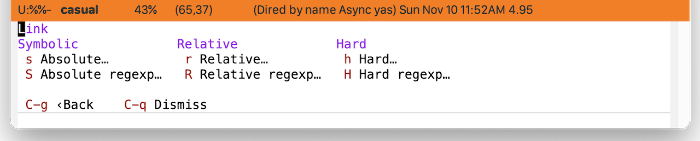
| Key | Label | Command |
|---|---|---|
| s | Absolute… | dired-do-symlink |
| S | Absolute regexp… | dired-do-symlink-regexp |
| r | Relative… | dired-do-relsymlink |
| R | Relative regexp… | dired-do-relsymlink-regexp |
| h | Hard… | dired-do-hardlink |
| H | Hard regexp… | dired-do-hardlink-regexp |
5.9.3.2 Dired Change (Change›) 

Commands to change file or directory metadata are provided by the Dired Change menu (casual-dired-change-tmenu.)
| Key | Label | Command |
|---|---|---|
| M | Mode… | dired-do-chmod |
| G | Group… | dired-do-chgrp |
| O | Owner… | dired-do-chown |
| T | Touch | dired-do-touch |
5.9.3.3 Dired Regexp (Regexp›) 
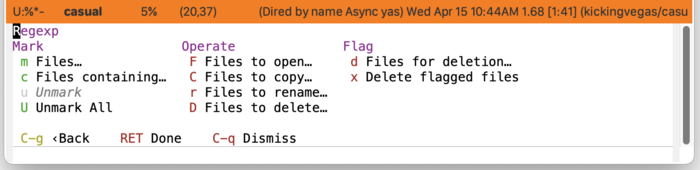
Commands to operate on files or directories based on regular expression (regexp) pattern matching are provided by the Dired Regexp menu (casual-dired-regexp-tmenu).
| Key | Label | Command |
|---|---|---|
| m | Files… | dired-mark-files-regexp |
| c | Files containing… | dired-mark-files-containing-regexp |
| u | Unmark | dired-unmark |
| U | Unmark All | dired-unmark-all-marks |
| F | Files to open… | dired-do-find-marked-files |
| C | Files to copy… | dired-do-copy-regexp |
| r | Files to rename… | dired-do-rename-regexp |
| D | Files to delete… | dired-do-delete |
| d | Files for deletion… | dired-flag-files-regexp |
| x | Delete flagged files | dired-do-flagged-delete |
5.9.3.4 Dired Sort By (Sort By›) 
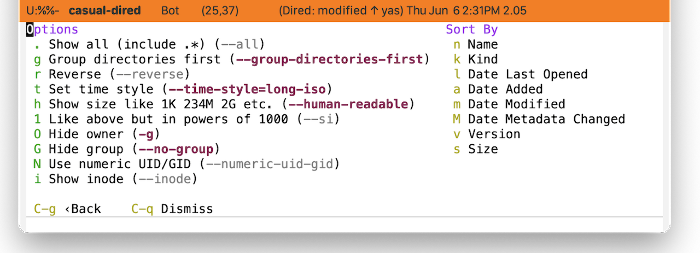
The Dired Sort By menu (casual-dired-sort-by-tmenu) provides an interface to configuring GNU ls.
The menu is separated into two sections:
- Options
Option switches to control how output is displayed.
Key Label Option Notes . Show all (include .*) –all Control display of hidden (dot) files. g Group directories first –group-directories-first r Reverse –reverse t Set time style –time-style= h Show size like 1K 234M 2G etc. –human-readable 1 Like above but in powers of 1000 –si O Hide owner -g G Hide group –no-group N Use numeric UID/GID –numeric-uid-gid i Show inode –inode Refer to GNU
ls(coreutils#ls invocation) for more detail on option behavior.
- Sort By
Commands to sort by a specified criteria.
Key Label Command n Name casual-dired–sort-by-name k Kind casual-dired–sort-by-kind l Date Last Opened casual-dired–sort-by-date-last-opened a Date Added casual-dired–sort-by-date-added m Date Modified casual-dired–sort-by-date-modified M Date Metadata Changed casual-dired–sort-by-date-metadata-changed s Size casual-dired–sort-by-size
With the Sort By menu raised, one can save the switch settings for future use via the binding C-x C-s (transient-save). Note this is a global setting and will apply to all future calls to the Sort By menu.
5.9.3.5 Dired Search & Replace (Search & Replace›) 
Search and replace in multiple marked files using the “/ Search & Replace›” menu (casual-dired-search-replace-tmenu) in casual-dired-tmenu. This will raise a menu of Dired commands that will work on marked files.
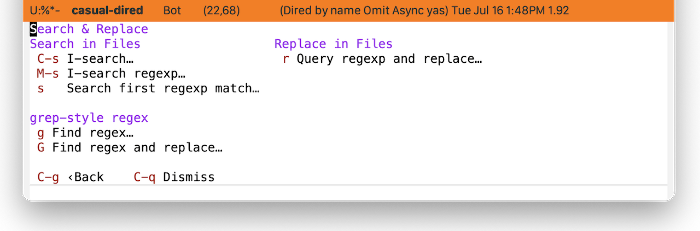
While most Dired commands use Emacs-style regular expression syntax ((elisp)Regular Expressions), there are commands that use grep-style regex syntax instead as it makes direct calls to grep. This syntax is dependent on the grep implementation that is installed and used by Emacs.
| Key | Label | Command | Notes |
|---|---|---|---|
| C-s | I-search… | dired-do-isearch | |
| M-s | I-search regexp… | dired-do-isearch-regexp | |
| s | Search first regexp match… | dired-do-search | |
| r | Query regexp and replace… | dired-do-query-replace-regexp | |
| g | Find regex… | dired-do-find-regexp | grep regex |
| G | Find regex and replace… | dired-do-find-regexp-and-replace | grep regex |
| f | Find in files (rgrep)… | rgrep | grep regex |
5.9.3.6 Dired Utilities (Utils›) 
Casual Dired organizes a number of Dired commands that work on a set of marked files. These commands are presented in the “# Utils›” menu (casual-dired-utils-tmenu) in casual-dired-tmenu.
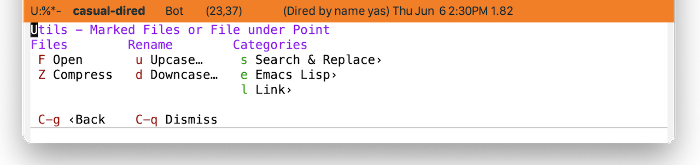
| Key | Label | Command |
|---|---|---|
| F | Open | dired-do-find-marked-files |
| Z | Compress | dired-do-compress |
| u | Upcase… | dired-upcase |
| d | Downcase… | dired-downcase |
| s | Search & Replace› | casual-dired-search-replace-tmenu |
| e | Emacs Lisp› | casual-dired-elisp-tmenu |
| l | Link› | casual-dired-link-tmenu |
5.9.3.7 Dired Elisp 
Support for running bulk commands for Elisp development are provided by the menu casual-dired-elisp-tmenu. This menu is located in the Utilities menu (Dired Utilities (Utils›)).
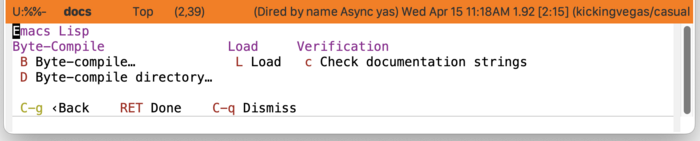
| Key | Label | Command |
|---|---|---|
| B | Byte-compile… | dired-do-byte-compile |
| D | Byte-compile directory… | byte-recompile-directory |
| L | Load | dired-do-load |
| c | Check documentation strings | checkdoc-dired |
5.9.3.8 Dired Settings (Settings›) 
Configure Dired to preference using the Settings menu (casual-dired-settings-tmenu).
Dired Unicode Symbol Support 
By enabling u “Use Unicode Symbols” from the Settings menu, Casual Dired will use Unicode symbols as appropriate in its menus.
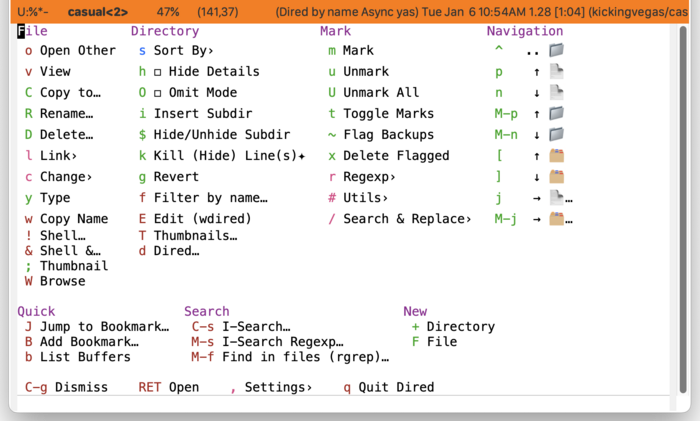
To ensure proper layout and spacing, your default typeface should be fixed-width or monospace and must support the Unicode symbols used.
For more info on using Unicode symbols, please refer to UX Conventions.
5.10 Ediff 
Casual Ediff (library: casual-ediff) is a user interface for Ediff (Ediff), a visual interface for the Unix diff and patch utilities. Casual Ediff strives to improve the usability of Ediff by simplifying the following workflows:
- Comparing a modified and uncommitted version-controlled file with its most recent commit.
- Resolving a merge conflicted file.
Notable features of Casual Ediff include:
- Context aware menu items.
- Menu design tuned for side-by-side comparison.
- For a merge conflict, the ability to resolve using both the conflicting diff versions.
Shown below is screenshot of the Casual Ediff in action for a version-controlled file.
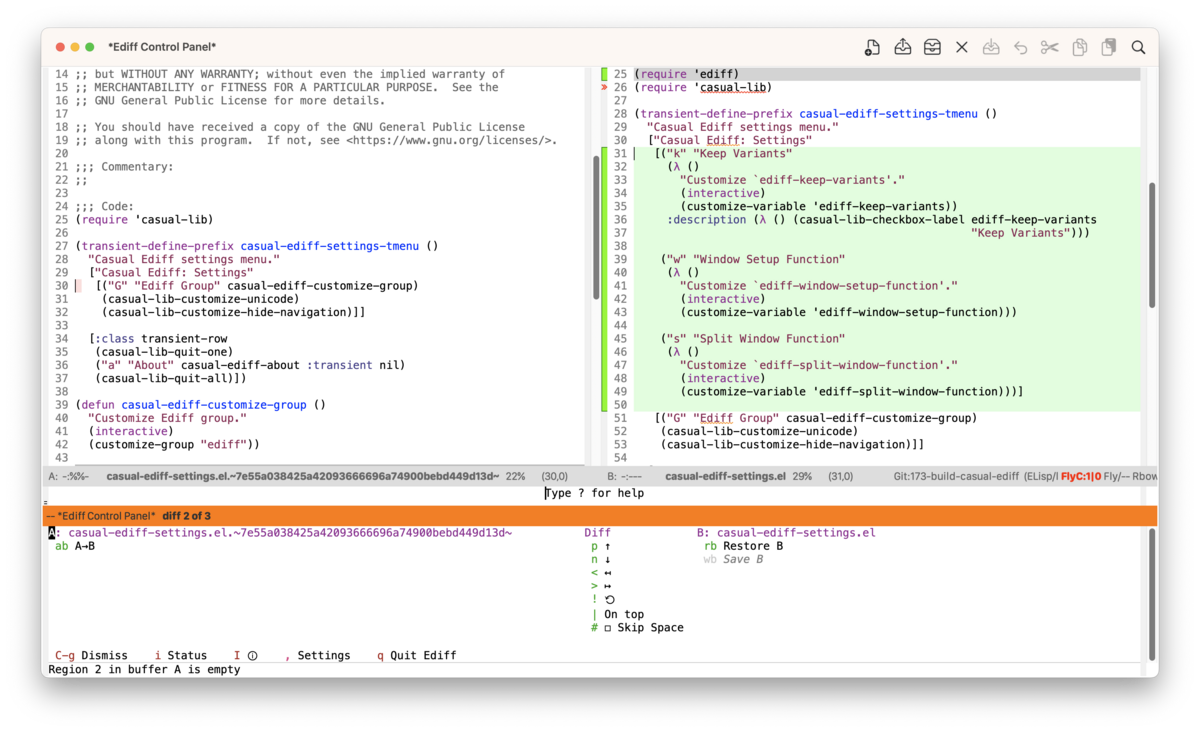
5.10.1 Ediff Install 
In your initialization file, bind the Transient casual-ediff-tmenu to your key binding of preference.
(casual-ediff-install) ; run this to enable Casual Ediff
(add-hook 'ediff-keymap-setup-hook
          (lambda ()
            (keymap-set ediff-mode-map "C-o" #'casual-ediff-tmenu)))
If the current buffer is loaded with a version-controlled file, then the difference between that buffer’s content with its most recent commit can be seen with the command casual-ediff-revision. It is often convenient to bind this command. Shown below is an example of such a binding.
(keymap-global-set "<f15>" #'casual-ediff-revision)
Users who wish to call casual-ediff-revision via mouse can use the command casual-ediff-revision-from-menu. An example of its use is shown in the source example below (note this is a code fragment).
(easy-menu-add-item
     menu nil
     ["Ediff revision…"
      casual-ediff-revision-from-menu
      :visible (and (bound-and-true-p buffer-file-name)
                    (vc-registered (buffer-file-name)))
      :help "Ediff this file with revision"])
Ediff Variables 
Casual Ediff recommends the following variables be set as follows:
| Variable | Value |
|---|---|
| ediff-keep-variants | nil |
| ediff-window-setup-function | ediff-setup-windows-plain |
| ediff-split-window-function | split-window-horizontally |
5.10.2 Ediff Usage 
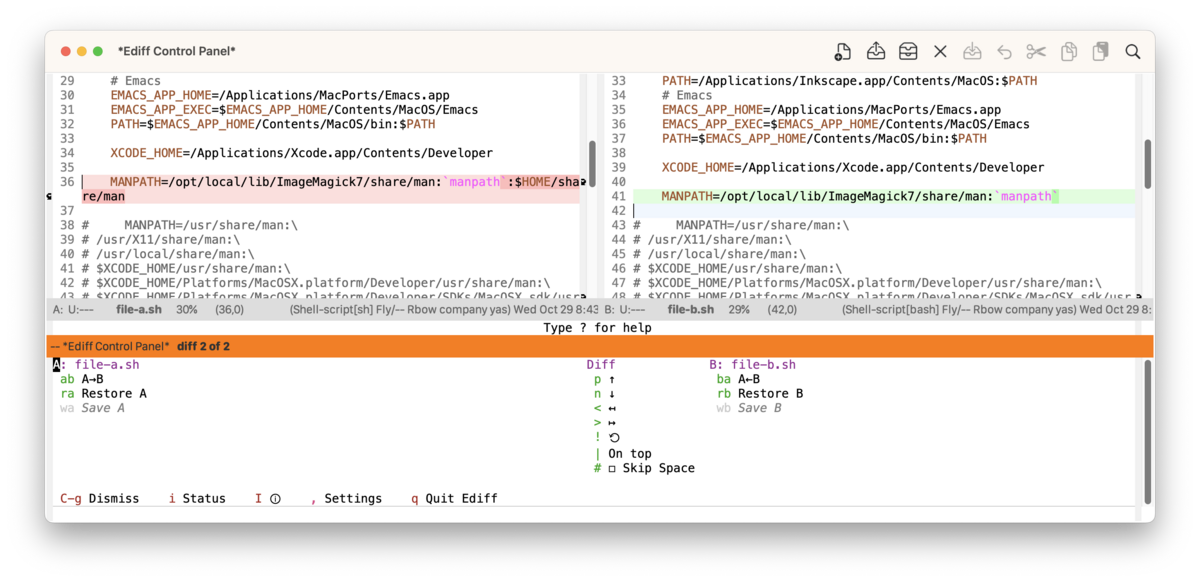
Casual Ediff (casual-ediff-tmenu) is invoked from the Ediff control window, typically using the binding C-o (or your binding of preference).
The menu comprises of sections laid out horizontally that correspond to source of the diffs. The number of sections and their contents are context-dependent on the type of content to be compared.
The following sections are offered in the menu:
- A
Context-dependent commands for Ediff buffer A.
- B
Context-dependent commands for Ediff buffer B.
- C
Context-dependent commands for Ediff buffer C, if available.
- Diff
Ediff commands not related to a specific buffer.
Navigation between diffs are bound to the p and n keys for previous and next diff respectively.
- Ediff Basic Operation
- Comparing a Version-Controlled File
- Resolving a Merge Conflict
- Ediff Settings
- Ediff Unicode Symbol Support
5.10.2.1 Ediff Basic Operation 
If two writeable files are compared, Casual Ediff provides the ability to write diffs from either side A or B to each other. Unwanted changes to a side can be restored.
5.10.2.2 Comparing a Version-Controlled File 
Casual Ediff provides a dedicated command to compare a version-controlled file with its latest commit: casual-ediff-revision. This command short-circuits the prompts asked for by the command ediff-revision which asks for the source file and the revision to compare it to. Call casual-ediff-revision from the window of a version-controlled file, typically by key binding of preference.
The A side will hold the last committed revision of a file. The B side will hold current source file.
Users desiring a mouse-driven approach to calling casual-ediff-revision should use the command casual-ediff-revision-from-menu invoked from either the top-level or context menu.
Note that both casual-ediff-revision and casual-ediff-revision-from-menu will checkpoint the window configuration before invoking the Ediff session and restore it after the session is complete.
5.10.2.3 Resolving a Merge Conflict 
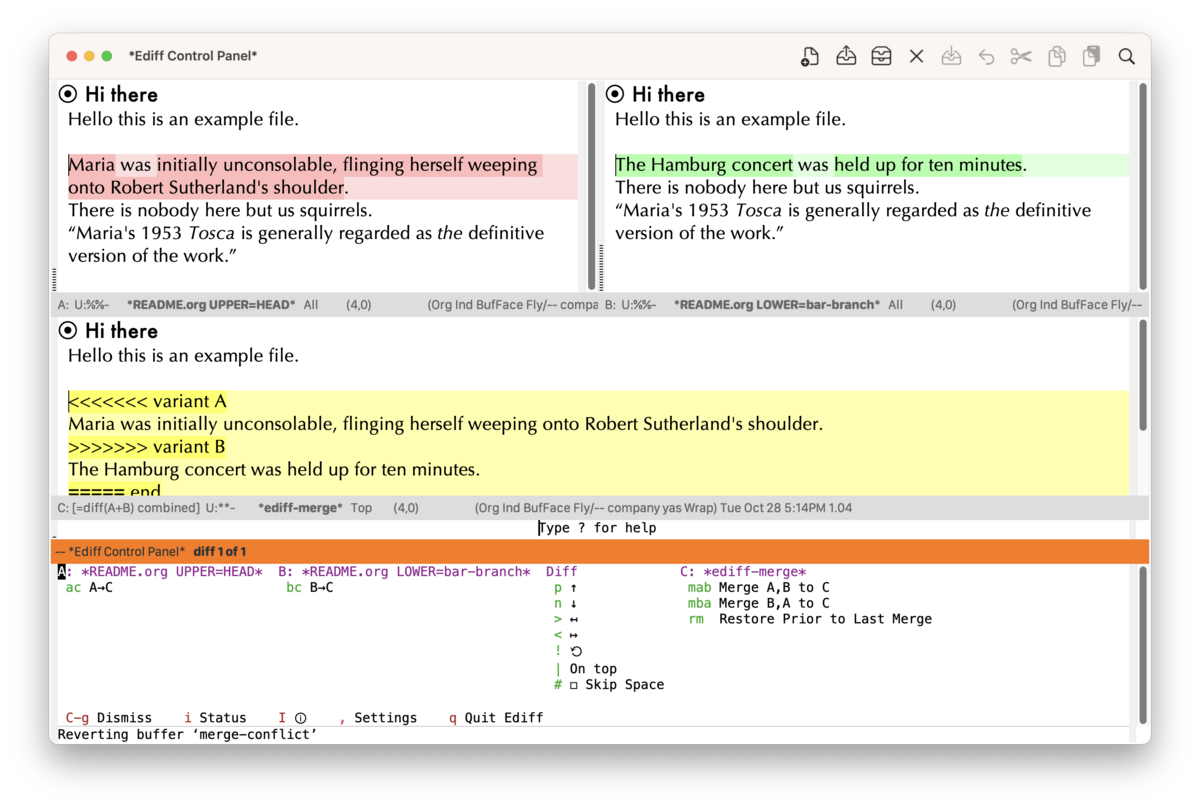
Magit offers a means of invoking Ediff to resolve a merge conflict via the e binding from the magit-status ((magit) Status Buffer) window.
Calling casual-ediff-tmenu will show the menu shown above. Note that in the C section, there are commands to merge both the variant A and variant B diffs using the bindings mab or mba, depending on the desired order the diffs are to be merged.
5.10.2.4 Ediff Settings 
The menu casual-ediff-settings-tmenu provides access to different ediff-mode settings.
5.10.2.5 Ediff Unicode Symbol Support 
By enabling “u Use Unicode Symbols” from the Settings menu, Casual Ediff will use Unicode symbols as appropriate in its menus.
For more info on using Unicode symbols, please refer to UX Conventions.
5.11 EditKit 
Casual EditKit (library: casual-editkit) provides a user interface for the numerous editing commands offered by Emacs. Its top-level library is casual-editkit. As text editing is a core feature of Emacs, the menus provided here are intended to be made available in a global fashion for buffers that are intended to be edited.
Casual EditKit endeavors to surface the many different editing commands offered by Emacs via Transient menus. The main menu (casual-editkit-main-tmenu) both demonstrates and provides a reference to all EditKit menus. Motivated users can customize this menu to their taste.
5.11.1 EditKit Install 
A reference menu (casual-editkit-main-tmenu) illustrating nearly all the different menus offered by Casual EditKit is provided. This menu can be used “as-is” with your binding of preference. For consistency with other Casual Packages, the binding C-o is used in the example below. Other candidate bindings include M-o and F10. To facilitate default access to this menu, the configuration below sets this binding to be global which can be overridden per mode. This is not mandatory and users are free to integrate Casual EditKit into their Emacs configuration however they see fit.
(keymap-global-set "C-o" #'casual-editkit-main-tmenu)
Also suggested is to globally bind the windows, rectangle, registers, and project menus as shown below.
(keymap-global-set "C-c w" #'casual-editkit-windows-tmenu)
(keymap-global-set "C-c r" #'casual-editkit-rectangle-tmenu)
(keymap-global-set "C-c g" #'casual-editkit-registers-tmenu)
(keymap-global-set "C-c p" #'casual-editkit-project-tmenu)
For motivated users desiring a bespoke solution, it is recommended that they use Casual EditKit as a library of menus to build their own workflows.
5.11.2 EditKit Usage 
The main menu of Casual EditKit (casual-editkit-main-tmenu) is organized into the following sections:
- File
Commands related to opening files or buffers are provided here.
- Edit
Text editing commands are provided here.
From this section, rectangle commands are made available via the “e Edit›” → “R Rectangle›” binding combination.
- Sexp
Text editing commands specific for a balanced expression (Sexp) are provided here.
- Tools
Commands for invoking different tools are provided here.
- Miscellaneous (unlabeled)
Commands related to bookmarks, window management, project (Emacs file organization), search & replace, and macros are found here.
Casual EditKit has numerous menus to cover a variety of edit related commands.
- Register commands
- Edit commands
- Window management
- Search & Replace commands
- Spell Commands
- Open commands
- Project commands
- Bookmark commands
- Emoji & Symbol Insertion
- Tool commands
- Narrow/Widen Commands
- Macro
- EditKit Settings
5.11.2.1 Register commands 
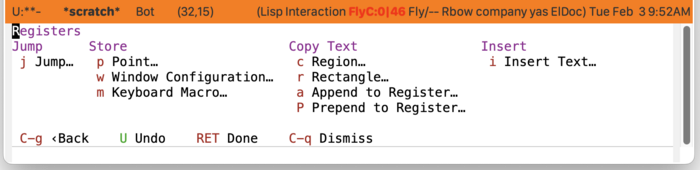
Support for register commands ((emacs)Registers) is provided by the menu casual-editkit-registers-tmenu. It is available via the menu item “r Registers›” in the navigation row at the bottom of casual-editkit-main-tmenu.
Register commands for saving and recalling text, point, window configuration, and keyboard macros are provided by this menu.
5.11.2.2 Edit commands 
The menu casual-editkit-edit-tmenu contains commands and sub-menus related to editing text.
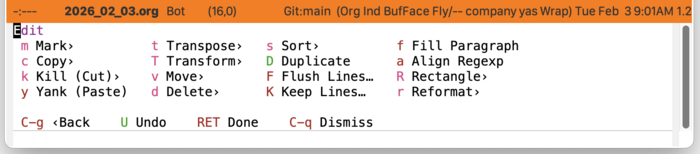
Depending on the buffer mode, text can be operated on with different granularity as words, sentences, paragraphs, balanced expressions, functions (defuns). The following sub-menus illustrate what operations can be done on the different text granularity.
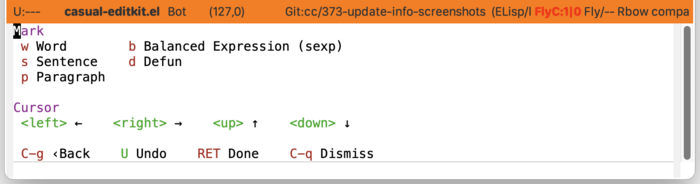
Mark› (casual-editkit-mark-tmenu) 
Text can be marked with different granularity with this menu. Note that the menu item “d Defun” is only supported for modes derived from prog-mode.
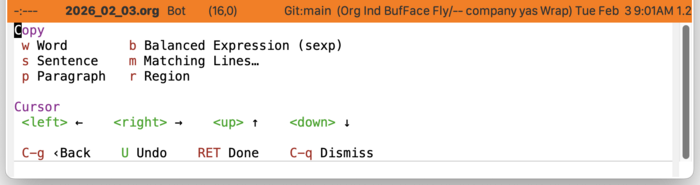
Copy› (casual-editkit-copy-tmenu) 
Text can be copied with different granularity with this menu.
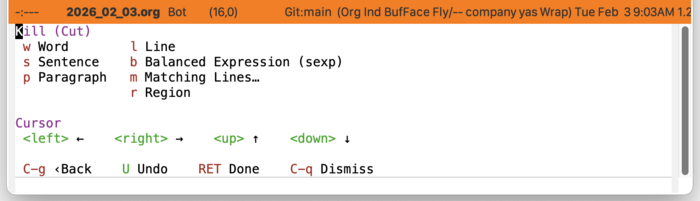
Kill (Cut)› (casual-editkit-kill-tmenu) 
Text can be cut (killed) with different granularity with this menu.
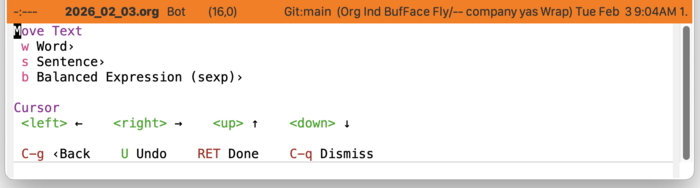
Move› (casual-editkit-move-tmenu) 
Text can be moved forwards or backwards with different granularity with this menu. Note that selecting a granularity will raise another menu to allow selection of direction (forward, backward) the text is to be moved. To enable repeat operation, that menu is persisted and must be dismissed either with either C-q (dismiss all) or C-g (dismiss to previous menu).
If “w Word›” is selected, then the following menu casual-editkit-move-word-tmenu is displayed.
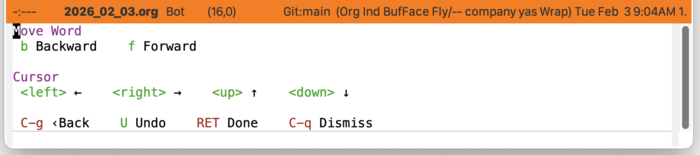
Similar menus for moving a sentence (casual-editkit-move-sentence-tmenu) and balanced expression (casual-editkit-move-sexp-tmenu) are available.
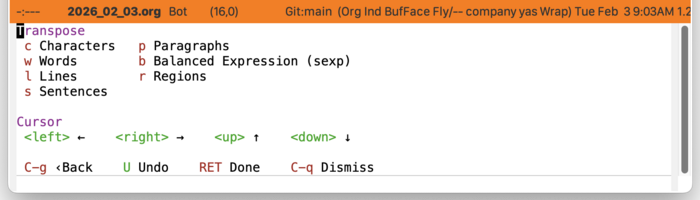
Transpose› (casual-editkit-transpose-tmenu) 
Text can be transposed with different granularity with this menu.
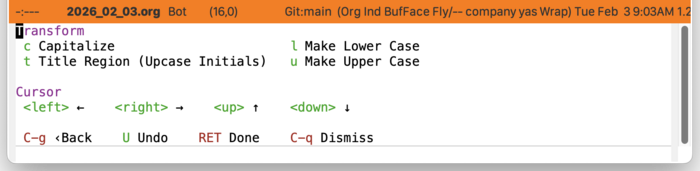
Transform› (casual-editkit-transform-tmenu) 
Text can be transformed with different granularity with this menu. Supported transformations are capitalization, lower and upper casing of text.
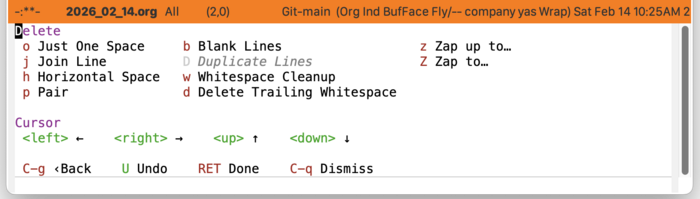
Delete› (casual-editkit-delete-tmenu) 
Operations involving text deletion are included in this menu, including joining lines and zapping to a character.
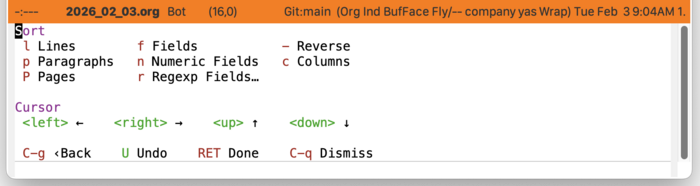
Sort› (casual-editkit-sort-tmenu) 
Sorting operations on different sections of text are supported, as well as support for sorting off a field. Press ? or C-h to get help for a specific command.
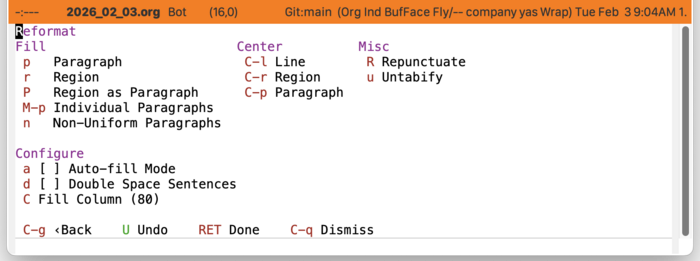
Reformat› (casual-editkit-reformat-tmenu) 
Commands to reformat text such as filling, centering, and repunctuating sentences are provided here. Press ? or C-h to get help for a specific command.
Rectangle› (casual-editkit-rectangle-tmenu) 
This menu offers all the rectangle commands. It is packaged as a sub-menu of casual-editkit-edit-tmenu.
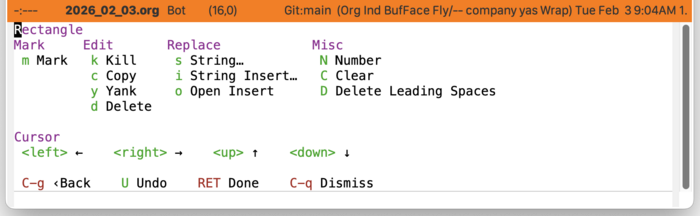
Users wishing more direct access to this menu can bind casual-editkit-rectangle-tmenu as shown in the install section.
5.11.2.3 Window management 
The menu casual-editkit-windows-tmenu provides support for different Emacs window management commands. Note that in Emacs, a window ((elisp)Basic Windows) is defined differently than its usage in contemporary graphical user interfaces.
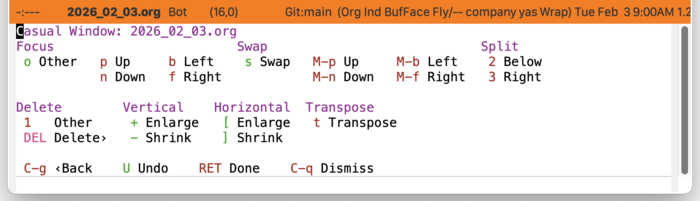
Note that the section “Transpose” is only available if the package transpose-frame is installed.
Users wishing more direct access to this menu can bind casual-editkit-windows-tmenu as shown in the install section.
Window Deletion 
This menu provides support for deleting windows. Note the commands apply to other windows, not the current one in focus.

Window Menu Unicode Symbol Support 
If the variable casual-lib-use-unicode is set to t, then Unicode symbols are used in the labels.
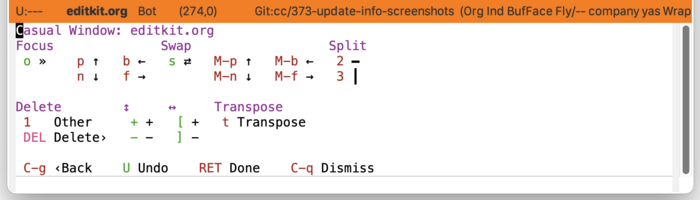
For more info on using Unicode symbols, please refer to UX Conventions.
5.11.2.4 Search & Replace commands 
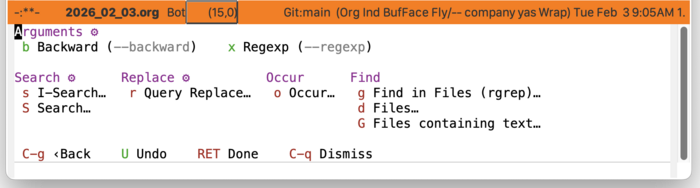
Operations related to search and replace are captured by the menu casual-editkit-search-tmenu. Note that this menu uses Transient prefix arguments (--backward and --regexp). This is because some commands have variants involving direction and whether to search using a regexp. Commands that support direction will by default operate forward of the current point if --backward is not enabled.
5.11.2.5 Spell Commands 
The menu item “M-s Spell›” will invoke the Transient menu casual-ispell-tmenu.
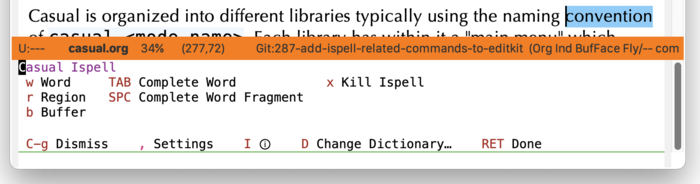
More detail on this menu can be found in Casual Ispell.
5.11.2.6 Open commands 
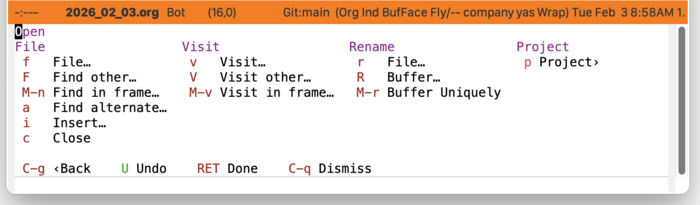
Commands related to opening a file (either for writing or read-only) are supported by the menu casual-editkit-open-tmenu. Included are commands for visiting and renaming a file or buffer. The Project sub-menu is also offered here.
5.11.2.7 Project commands 
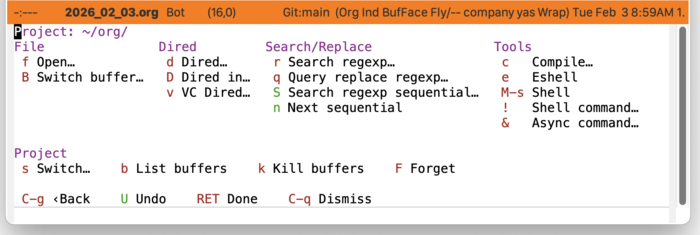
Project-related commands are listed in the menu casual-editkit-project-tmenu.
5.11.2.8 Bookmark commands 
Commands edit, add, or jump to a bookmark are captured in the menu casual-editkit-bookmarks-tmenu.

5.11.2.9 Emoji & Symbol Insertion 
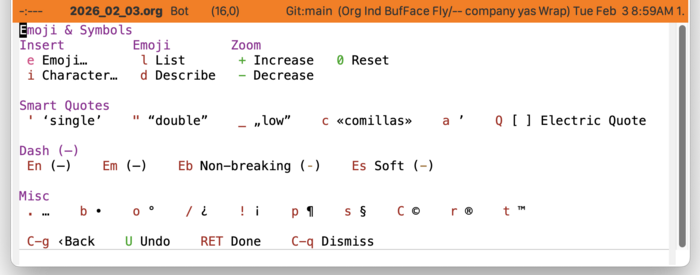
Insert emoji and symbol characters with the menu casual-editkit-emoji-symbol-tmenu. Smart quotes are also supported by this menu and can be applied to a text region. This menu also offers the command electric-quote-mode which is bound to Q.
5.11.2.10 Tool commands 
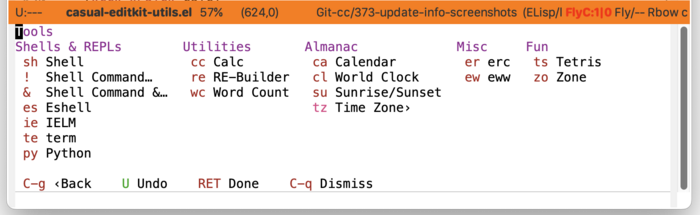
The menu casual-editkit-tools-tmenu holds an assorted collection of different tools/utilities provided by Emacs. Motivated users can use this Transient prefix as starting point to create a menu customized to their needs.
5.11.2.11 Narrow/Widen Commands 
Support for narrowing and widening ((emacs)Narrowing) a buffer is supported by the menu casual-editkit-narrow-tmenu. Mode specific narrowing behavior is supported for Org and prog-mode derived buffers.
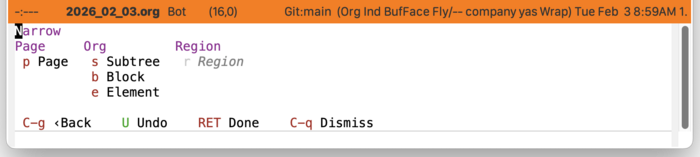
This menu can be modified ((transient)Modifying Existing Transients) to support narrowing in other modes, particularly those that are packaged with Emacs. For example, if one wanted narrowing support for Markdown (markdown-mode), the following initialization code can be used.
(transient-append-suffix 'casual-editkit-narrow-tmenu '(0 0)
   ["Markdown"
    :if (lambda () (derived-mode-p 'markdown-mode))
    ("s" "Subtree" markdown-narrow-to-subtree)
    ("b" "Block" markdown-narrow-to-block)
    ("p" "Page" markdown-narrow-to-page)])
5.11.2.12 Macro 
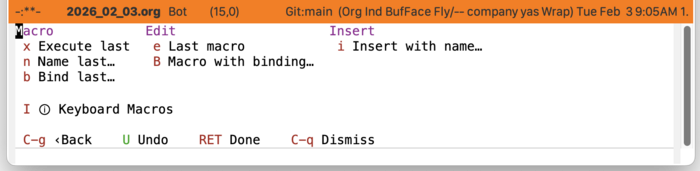
Commands for managing macros are provided for by the menu casual-editkit-macro-tmenu. Note that macro creation commands are not supported as they are tightly-bound to keybindings.
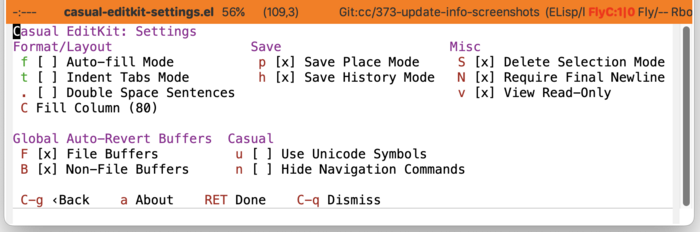
5.11.2.13 EditKit Settings 
Configuration of common editing-related settings are provided by the menu casual-editkit-settings-tmenu. Most all settings are set via the customize-variable interface with the following exceptions for:
- “Auto-fill Mode (
auto-fill-mode)” - “Indent Tabs Mode (
indent-tabs-mode)” - “Fill Column (
set-fill-column)”
Those commands will instead apply to the current buffer. The variables listed above can be more permanently set via the customize-variable command.
5.12 Elisp 
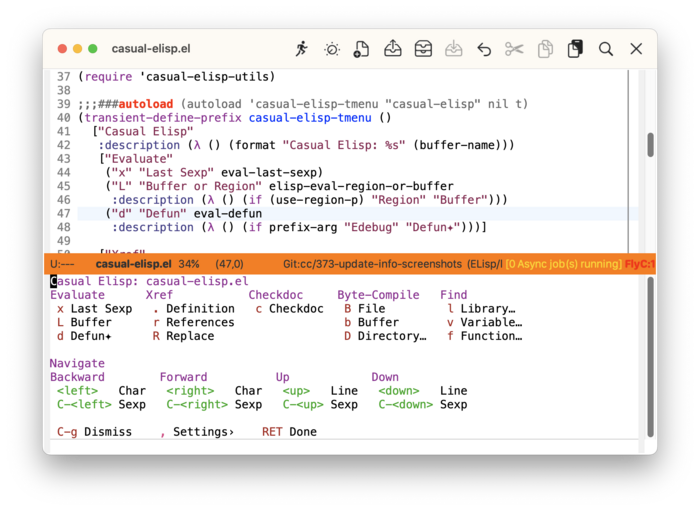
Casual Elisp (library: casual-elisp) is a user interface for emacs-lisp-mode. It provides a menu for commands useful for Elisp development.
5.12.1 Elisp Install 
In your initialization file, bind the Transient casual-elisp-tmenu to your key binding of preference. Suggested bindings include M-m and C-c m. This menu is intended to be auxiliary to Casual EditKit.
(keymap-set emacs-lisp-mode-map "M-m" #'casual-elisp-tmenu)
The binding M-m is intended to complement the binding C-o used by EditKit.
5.12.2 Elisp Usage 
Invoke the Casual Elisp main menu casual-elisp-tmenu via the binding M-m (or your binding of preference) in an Elisp window. Typically this is whenever an ‘.el’ file is opened.
The following sections are offered in the menu:
- Evaluate
Commands to evaluate, execute, or debug an Elisp expression ((elisp)Eval, (elisp)Edebug).
- Xref
Cross-referencing commands ((emacs)Xref).
- Checkdoc
Checks docstrings in the file.
- Byte-Compile
Commands for byte-compilation ((elisp)Byte Compilation).
- Find
Find commands.
- Navigate
Commands for Sexp (balanced expression) navigation.
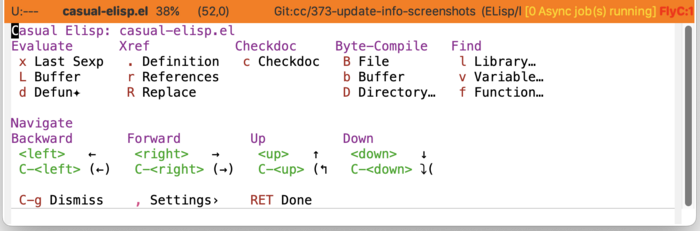
Elisp Unicode Symbol Support 
By enabling “u Use Unicode Symbols” from the Settings menu, Casual Elisp will use Unicode symbols as appropriate in its menus.
For more info on using Unicode symbols, please refer to UX Conventions.
5.13 Eshell 
Casual Eshell (library: casual-eshell) is a user interface for Eshell, a shell-like command interpreter implemented in Emacs Lisp.
5.13.1 Eshell Install 
In your initialization file, bind the Transient casual-eshell-tmenu to your key binding of preference.
(keymap-set eshell-mode-map "C-o" #'casual-eshell-tmenu)
5.13.2 Eshell Usage 
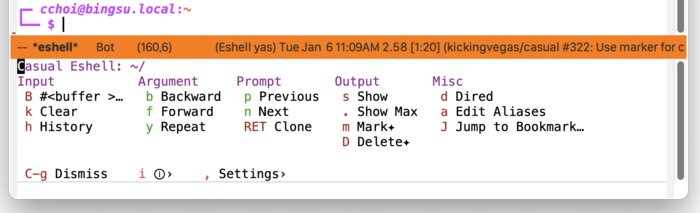
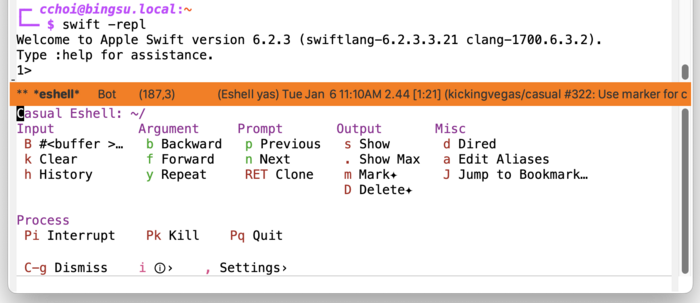
Eshell can be invoked via M-x eshell. In the Eshell window, press C-o (or your binding of preference) to raise the menu casual-eshell-tmenu.
The following sections are offered in the menu:
- Input
Commands supporting input to the current prompt.
- Argument
Commands supporting arguments in the current prompt.
- Prompt
Navigation of previous prompt commands.
- Output
Commands related to display of prompt. Commands marked with the glyph ✦ support an optional prefix (C-u) value.
- Misc
Miscellaneous commands.
- Process
Signal commands to send to the process. This section is only visible when a process is running.
Eshell Settings 
The menu casual-eshell-settings-tmenu provides access to different eshell-mode settings.
Eshell Info 
The menu casual-eshell-info-tmenu provides access to different eshell-mode documentation in its Info manual.
Eshell Unicode Symbol Support 
By enabling “u Use Unicode Symbols” from the Settings menu, Casual Eshell will use Unicode symbols as appropriate in its menus.
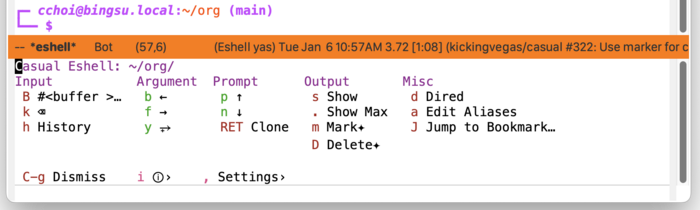
For more info on using Unicode symbols, please refer to UX Conventions.
5.14 EWW 
Casual EWW (library: casual-eww) is a user interface for Emacs Web Wowser ((eww)Top), a web browser that runs inside Emacs.
5.14.1 EWW Install 
In your initialization file, bind the Transient casual-eww-tmenu to your key binding of preference.
(keymap-set eww-mode-map "C-o" #'casual-eww-tmenu)
Do so similarly to access casual-eww-bookmarks-tmenu in the EWW bookmarks list.
(keymap-set eww-bookmark-mode-map "C-o" #'casual-eww-bookmarks-tmenu)
While not mandatory, the following bindings can make the EWW keymaps consistent with those used by Casual.
(keymap-set eww-mode-map "C-o" #'casual-eww-tmenu)
(keymap-set eww-mode-map "C-c C-o" #'eww-browse-with-external-browser)
(keymap-set eww-mode-map "j" #'shr-next-link)
(keymap-set eww-mode-map "k" #'shr-previous-link)
(keymap-set eww-mode-map "[" #'eww-previous-url)
(keymap-set eww-mode-map "]" #'eww-next-url)
(keymap-set eww-mode-map "M-]" #'eww-forward-url)
(keymap-set eww-mode-map "M-[" #'eww-back-url)
(keymap-set eww-mode-map "n" #'casual-lib-browse-forward-paragraph)
(keymap-set eww-mode-map "p" #'casual-lib-browse-backward-paragraph)
(keymap-set eww-mode-map "P" #'casual-eww-backward-paragraph-link)
(keymap-set eww-mode-map "N" #'casual-eww-forward-paragraph-link)
(keymap-set eww-mode-map "M-l" #'eww)

(keymap-set eww-bookmark-mode-map "C-o" #'casual-eww-bookmarks-tmenu)
(keymap-set eww-bookmark-mode-map "p" #'previous-line)
(keymap-set eww-bookmark-mode-map "n" #'next-line)
(keymap-set eww-bookmark-mode-map "<double-mouse-1>" #'eww-bookmark-browse)
5.14.2 EWW Usage 
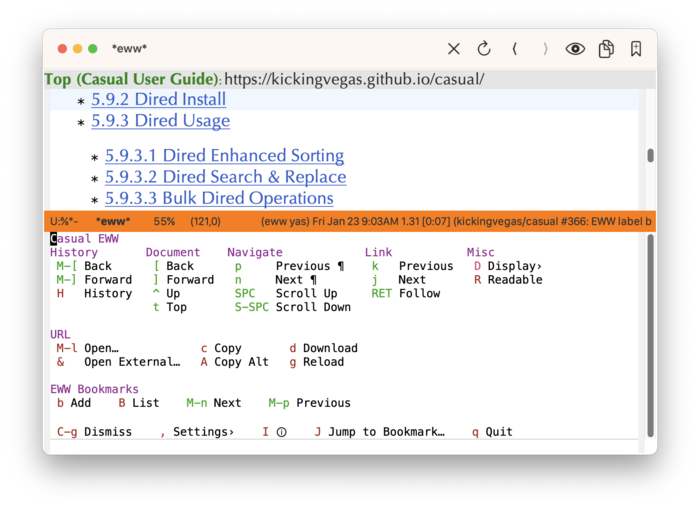
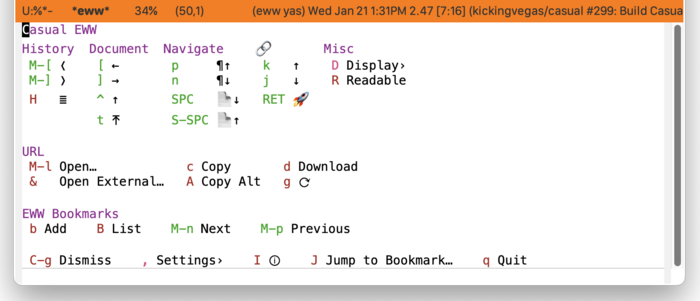
In an EWW window, invoke casual-eww-tmenu as shown below.
The following sections are offered in the menu:
- History
Commands for historical navigation.
- Document
Commands for document navigation (
<link rel="">) provided the HTML pages support it. HTML generated from Texinfo ((texinfo)Top) supports these commands.- Navigate
Commands to navigate within a page.
- Link
Commands to navigate links within a page.
- Misc
Miscellaneous commands.
- URL
Commands associated with the current web page.
- EWW Bookmarks
Commands associated with EWW bookmarks.
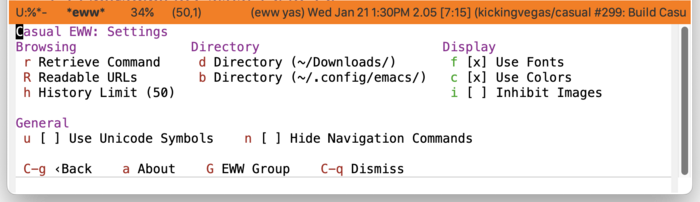
EWW Settings 
Customize common EWW settings from this menu. These settings can be persisted to be used across restarts of Emacs.
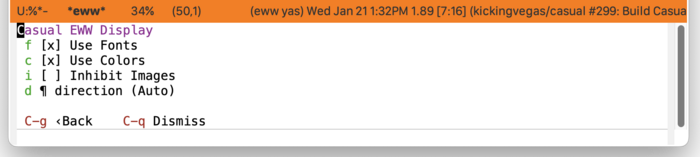
EWW Display 
The menu casual-eww-display-tmenu provides commands to toggle different display attributes of a web page.
EWW Bookmarks 
The menu casual-eww-bookmarks-tmenu provides commands for managing the EWW bookmark list.
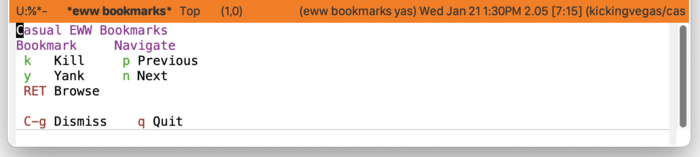
Note that the EWW bookmarks list has a very limited feature set.
EWW Unicode Symbol Support 
By enabling “u Use Unicode Symbols” from the Settings menu, Casual EWW will use Unicode symbols as appropriate in its menus.
For more info on using Unicode symbols, please refer to UX Conventions.
5.15 Help 
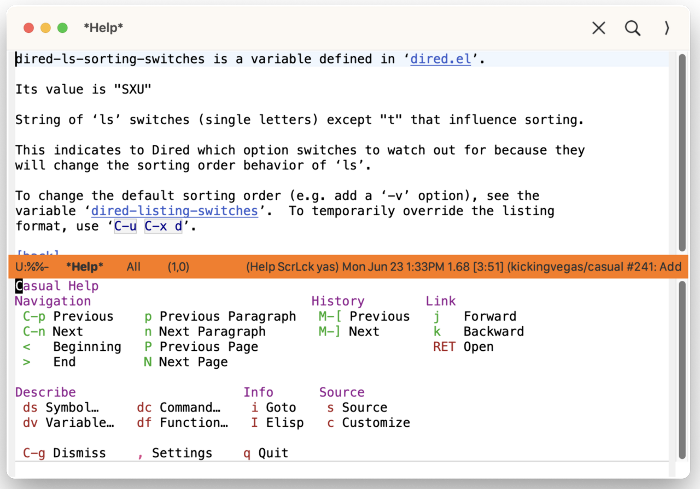
Casual Help (library: casual-help) is a user interface for help-mode, a major mode for viewing help text and navigating references in it.
5.15.1 Help Install 
In your initialization file, bind the Transient casual-help-tmenu to your key binding of preference.
(keymap-set help-mode-map "C-o" #'casual-help-tmenu)
casual-help-tmenu deviates from the default bindings of help-mode-map as shown in the table below.
| Default Binding | Casual Binding | Command | Notes |
|---|---|---|---|
| l | M-[ | help-go-back | Make consistent with Casual Info behavior. |
| r | M-] | help-go-forward | Make consistent with Casual Info behavior. |
| n | N | help-goto-next-page | Use to navigate to next page. |
| p | P | help-goto-previous-page | Use to navigate to previous page. |
| n | casual-lib-browser-forward-paragraph | Use to navigate paragraph forward. | |
| p | casual-lib-browser-backward-paragraph | Use to navigate paragraph backward. |
The following keybindings are recommended to support consistent behavior between help-mode and casual-help-tmenu.
(keymap-set help-mode-map "M-[" #'help-go-back)
(keymap-set help-mode-map "M-]" #'help-go-forward)
(keymap-set help-mode-map "p" #'casual-lib-browse-backward-paragraph)
(keymap-set help-mode-map "n" #'casual-lib-browse-forward-paragraph)
(keymap-set help-mode-map "P" #'help-goto-previous-page)
(keymap-set help-mode-map "N" #'help-goto-next-page)
(keymap-set help-mode-map "j" #'forward-button)
(keymap-set help-mode-map "k" #'backward-button)
5.15.2 Help Usage 
After invoking help via a describe- command, invoke casual-help-tmenu using the binding C-o (or your binding of preference).
The following sections are offered in the menu:
- Navigation
Navigation commands with the document.
- History
Navigate history of help invocations.
- Link
Navigate to different references in the help buffer.
- Describe
Get help for different Elisp types.
- Info
If available, then open this help topic in Info.
- Source
Show the Elisp source. If the help displayed is for a customizable variable, then show a customize menu item.
Help Mode Settings 
The menu casual-help-settings-tmenu provides access to different help-mode settings.
Help Mode Unicode Symbol Support 
By enabling “u Use Unicode Symbols” from the Settings menu, Casual Help will use Unicode symbols as appropriate in its menus.
For more info on using Unicode symbols, please refer to UX Conventions.
5.16 HTML 
Casual HTML (library: casual-html) is a user interface for html-mode (html-mode).
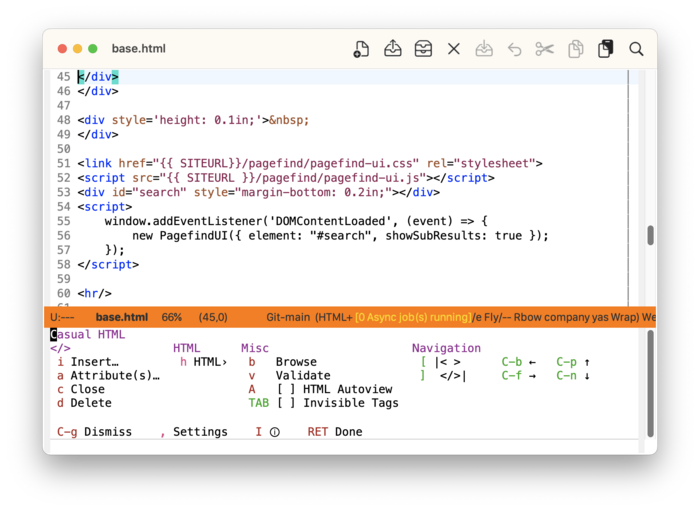
Casual also has support for CSS editing (CSS).
5.16.1 HTML Install 
In your initialization file, bind the Transient casual-html-tmenu to your key binding of preference.
(keymap-set html-mode-map "M-m" #'casual-html-tmenu)
It is convenient to also bind casual-html-tags-tmenu as well.
(keymap-set html-mode-map "C-c m" #'casual-html-tags-tmenu)
The binding M-m is intended to complement the binding C-o used by EditKit.
If HTML Tree-sitter support is enabled, use the keymap html-ts-mode-map in place of html-mode-map.
5.16.2 HTML Usage 
The following sections are offered in the menu:
- </>
SGML tag-related commands.
- HTML
HTML tag-related commands.
- Misc
Miscellaneous commands.
- Navigation
Navigation commands.
Note that the item “d Delete” (bound to sgml-delete-tag) is not available when HTML Tree-sitter support is enabled.
HTML Tags 
This menu provides support for HTML tag-related commands provided by html-mode.

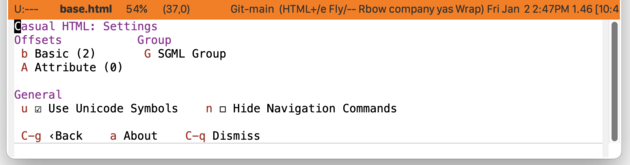
HTML Settings 
SGML/HTML mode related settings can be customized using the menu casual-html-settings-tmenu.
HTML Unicode Symbol Support 
By enabling “u Use Unicode Symbols” from the Settings menu, Casual html will use Unicode symbols as appropriate in its menus.
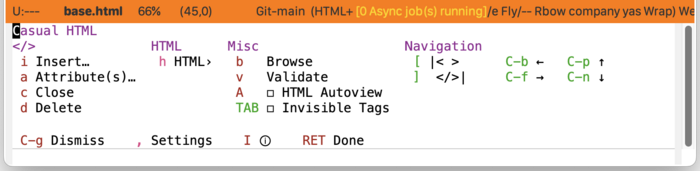
For more info on using Unicode symbols, please refer to UX Conventions.
5.17 IBuffer 
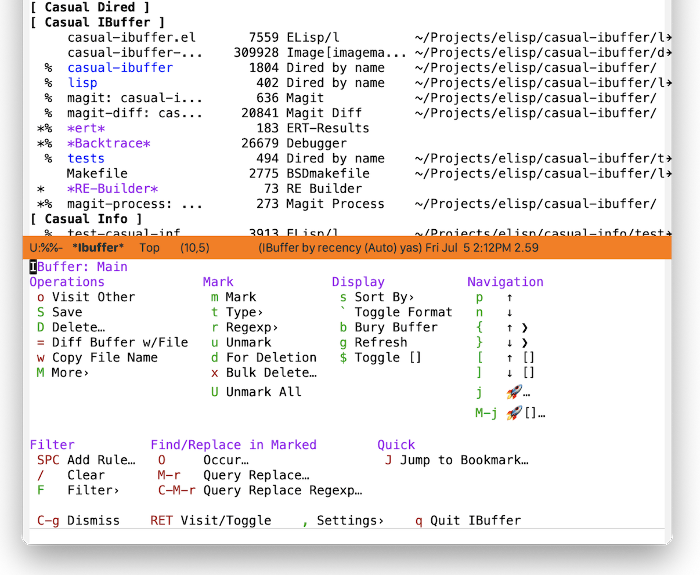
Casual IBuffer (library: casual-ibuffer) provides a user interface to Emacs IBuffer (emacs#Buffer Menus), a mode designed for managing buffers.
IBuffer is a powerful tool for managing Emacs workflows. As Emacs is often compared to an operating system, through that lens one could compare IBuffer to being a task manager interface, managing instantiated buffers as opposed to processes.
5.17.1 IBuffer Install 
In your initialization file, bind the Transinent casual-ibuffer-tmenu to your key binding of preference.
(keymap-set ibuffer-mode-map "C-o" #'casual-ibuffer-tmenu)
Like with Casual Dired, it is convenient to have the menus for filtering and sorting bound as well. Listed below shows an example of binding casual-ibuffer-filter-tmenu and casual-ibuffer-sortby-tmenu to F and s respectively.
(keymap-set ibuffer-mode-map "F" #'casual-ibuffer-filter-tmenu)
(keymap-set ibuffer-mode-map "s" #'casual-ibuffer-sortby-tmenu)
Use these keybindings to configure IBuffer to be consistent with keybindings used by Casual IBuffer.
(keymap-set ibuffer-mode-map "{" #'ibuffer-backwards-next-marked)
(keymap-set ibuffer-mode-map "}" #'ibuffer-forward-next-marked)
(keymap-set ibuffer-mode-map "[" #'ibuffer-backward-filter-group)
(keymap-set ibuffer-mode-map "]" #'ibuffer-forward-filter-group)
(keymap-set ibuffer-mode-map "$" #'ibuffer-toggle-filter-group)
While not necessary for Casual IBuffer, enabling hl-line-mode and binding mouse clicks in IBuffer adds to a more comfortable IBuffer experience. Also, adding ibuffer-auto-mode to ibuffer-mode-hook will enable auto-updating.
(require 'hl-line)
(require 'mouse)
(add-hook 'ibuffer-mode-hook #'hl-line-mode)
(add-hook 'ibuffer-mode-hook #'ibuffer-auto-mode)
(keymap-set ibuffer-mode-map "<double-mouse-1>" #'ibuffer-visit-buffer)
(keymap-set ibuffer-mode-map "M-<double-mouse-1>" #'ibuffer-visit-buffer-other-window)
5.17.2 IBuffer Usage 
The main menu of Casual IBuffer (casual-ibuffer-tmenu) is organized into the following sections:
- Operations
Commands to operate either on the buffer at point or on marked buffers.
- Mark
Commands to support the marking of buffers.
- Display
Commands to control the display of buffers. Buffers can be sorted by different criteria.
- Navigation
Commands to navigate the buffer list.
- Filter
Commands related to filtering/organizing buffers. Support for defining Filter Groups is provided here.
- I-Search/Occur Marked
I-Search and Occur commands for marked buffers are here. Note that while you are in an I-Search session, the Transient menu for I-Search is available to you.
- Query Replace Marked
Commands to search & replace text in marked buffers are provided here. Note that commands in this section that modify buffers do not save said buffers.
Note that the menu item “RET” has “do what I mean” (DWIM) behavior. If the point is currently on a filter group (described below) then pressing the RET key will toggle the visibility of items matching that filter group. Otherwise, it will visit (open) the buffer.
As with other Casual user interfaces, the ability to jump to a bookmark is available.
The sections below detail further the features of IBuffer.
5.17.2.1 IBuffer Marking and Operating 
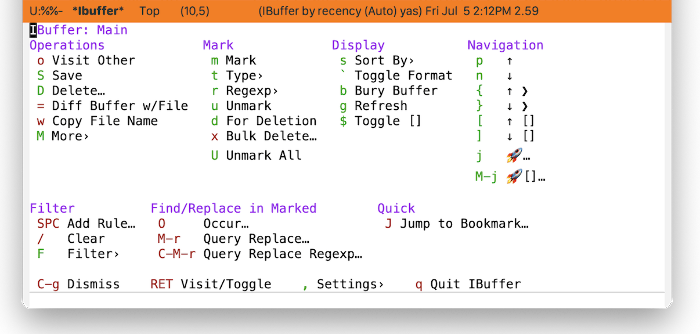
Buffers can be marked using different criteria to be operated on. Common operations include saving and deleting buffers. Note that deleting a buffer populated with a visited file is not deleting the visited file. If no buffer is marked, then the buffer under the current point is operated on.
Operations 
Pressing “M More›” from the Operations section in the main menu will raise a menu (casual-ibuffer-operations-tmenu) providing additional commands to operate on a buffer.

Mark 
Pressing “t Type›” from the Operations section in the main menu will raise a menu (casual-ibuffer-mark-tmenu) to mark buffers by type.
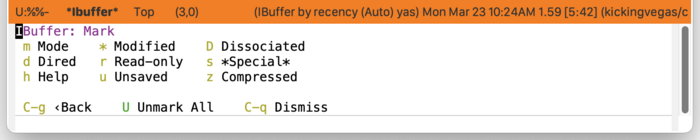
Mark Regexp 
Pressing “r Regexp›” from the Operations section in the main menu will raise a menu (casual-ibuffer-mark-regexp-tmenu) to mark buffers by regexp.
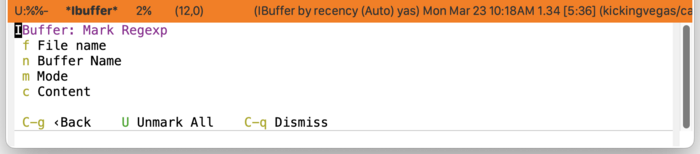
5.17.2.2 IBuffer Filtering 
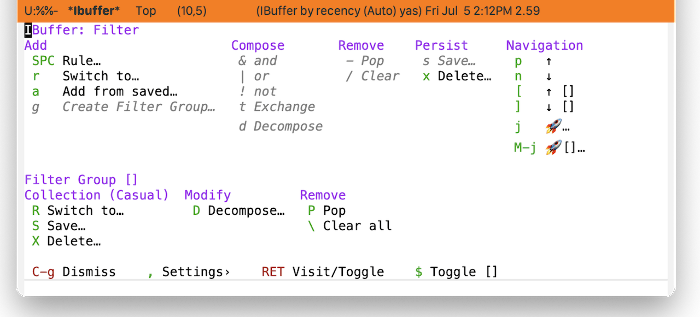
IBuffer is embarrasingly rich in the ways it can filter buffers. Once mastered, IBuffer filtering offers a way to create different views on your buffer list, enabling you to tailor bespoke views for different workflows. Such capability comes with a price though: you’ll need to understand how IBuffer wants to organize filters.
Key is the concept of a Filter Group which is IBuffer’s analog to a Dired subdirectory ((emacs)Subdirectories in Dired). But whereas a subdirectory only maps to a file system directory, a filter group can be constructed from a diverse set of rules to categorize a buffer.
IBuffer organizes filtering with the following taxonomy:
- Filter rule
The smallest unit of filtering. There are many types of filter rules:
- filter by major mode
- filter by derived mode
- filter by buffer name
- filter by buffer content
- filter by basename
- filter by directory name
- filter by filename
- filter by file extension
- filter by modified buffers
- filter by an arbitrary Lisp predicate
- filter by buffer size
- filter by special buffers
- filter by buffers visiting files
Casual IBuffer makes the design decision to not enumerate the above in a menu, delegating the work of filter selection to the command
ibuffer-filter-chosen-by-completion.
- Filter
A filter is a logical combination of filter rules. Logic operators such as AND (&), OR (|) and NOT (!) are used to compose rules into a filter. A single filter rule can also be construed as a filter.
Properties of filters:
- A filter can be defined and saved for subsequent use.
- Filters are saved in the customizable variable ‘ibuffer-saved-filters’.
- Multiple filters can be applied at the same time to a set of buffers.
- Multiple filters are applied in LIFO order. Removing a filter is a “pop” operation.
- Rules that are combined with a logic operator are treated as a single element of the LIFO stack.
- To individually edit the combination, use the Decompose command to remove the logic operator first.
- A filter can be defined and saved for subsequent use.
- Filter Group
A filter group is set of filters. The set itself is named with an identifier that is user-defined.
Properties of filter groups:
- A filter group can be defined and saved for subsequent use but with a special qualifier:
- Filter groups are only saved as a collection (more below) in the customizable variable ‘ibuffer-saved-filter-groups’. A filter group can not be saved individually.
- Multiple filter groups can be applied to partition the buffer list.
- Multiple filter groups are applied in LIFO order. Removing a filter group is a “pop” operation.
- Similar LIFO and decompose behavior applicable to a filter group is supported.
- A filter group can be defined and saved for subsequent use but with a special qualifier:
- Filter Group Collection
A collection is a set of filter groups that can be named with a user-defined identifier. Only one collection can be applied to a buffer list at a time. However, many different collections can be defined, allowing for different views of the same buffer list.
Creating Filters
The basic procedure for making a filter that applies to the entire buffer list is as follows:
- From the Filter menu, create a filter via (SPC) Rule… and some desired combination of operators.
- Save the filter via (s) Save…. You will be prompted to provide a name for the filter. This filter will be saved in the variable ‘ibuffer-saved-filters’.
- To recall this filter at a subsequent time, use (r) Switch to… in the Add section of the Filter menu.
Creating a Collection of Filter Groups
Here is where the taxonomy becomes significant as the IBuffer command set unfortunately does not provide much observability on edit operations to filters.
- Create a filter as described above.
- In the Add section of the Filter menu, select (g) Create Filter Group… to convert the filter into a filter group. You will be prompted to name the filter group. This group name will be enclosed by square brackets [].
- Multiple filter groups can be created by repeating steps 1 and 2 above. Note that when constructing a filter group, the IBuffer window will not provide observability of existing filter groups on the buffer list.
- You can save the set of filter groups as a collection in the Collection section with the command (S) Save…. You will be prompted to name the collection. Note that only one collection can be used at a time in IBuffer.
Out of the box, it is best to think of the IBuffer commands for editing buffer filters as a kit of parts and an arguably incomplete one at that. The Casual IBuffer filter menu (‘casual-ibuffer-filter-tmenu’) is my attempt to build a comprehensible filter editor UI from this kit. Whether it succeeds in being comprehensible is left to user feedback.
5.17.2.3 IBuffer Sorting 
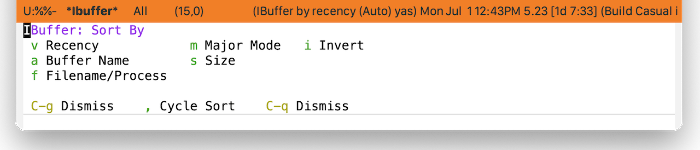
The buffer list can be sorted using different criteria using the menu casual-ibuffer-sortby-tmenu.
Sort ordering can be reversed via the Invert command.
5.17.2.4 IBuffer Unicode Symbol Support 
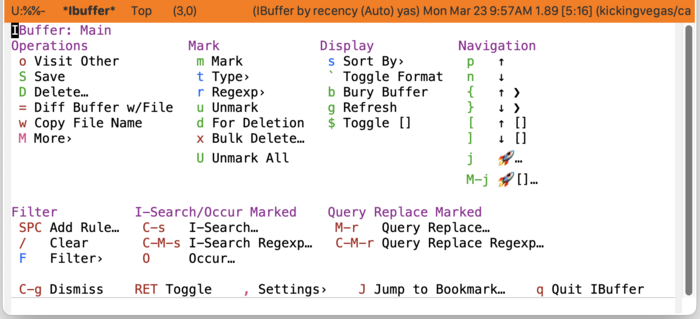
By enabling “u Use Unicode Symbols” from the Settings menu, Casual IBuffer will use Unicode symbols as appropriate in its menus.
For more info on using Unicode symbols, please refer to UX Conventions.
5.18 Image 
Casual Image (library: casual-image) is a user interface for Image Mode ((emacs)Image Mode).
Resizing an image is supported if ImageMagick 6 or 7 is installed. This interface deviates significantly with naming conventions used by image-mode to be more in alignment with conventional image editing tools.
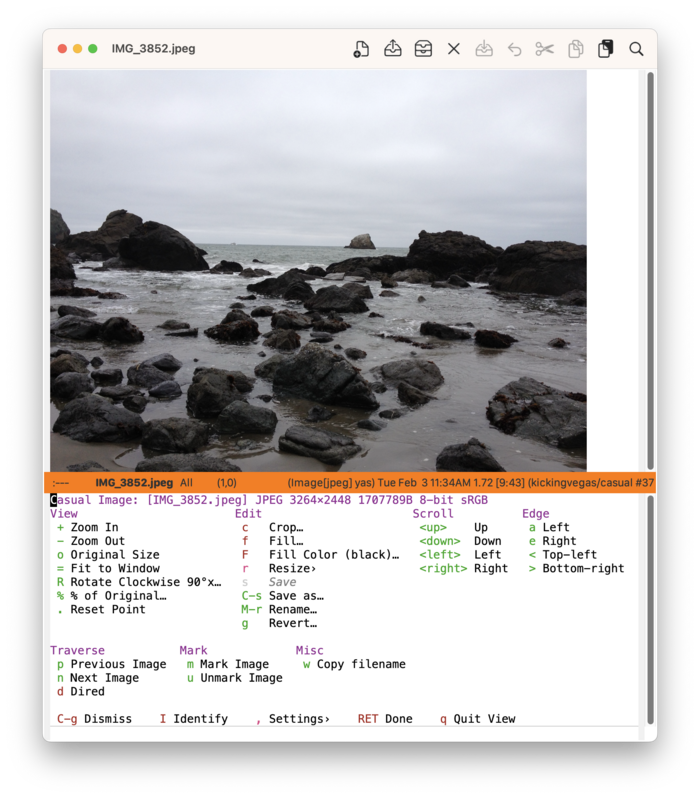
5.18.1 Image Install 
The main menu for Casual Image is casual-image-tmenu. Bind this menu in the keymap image-mode-map as follows in your initialization file.
(keymap-set image-mode-map "C-o" #'casual-image-tmenu)
5.18.2 Image Usage 
The main menu for Casual Image (casual-image-tmenu) is organized into the following sections:
- View
Commands to control the display of the image. None of these commands will mutate the image file.
- Edit
Commands to edit the image file.
- Scroll
Commands to scroll an image view that is larger than its window size.
- Edge
Commands to navigate to the edges of an image view that is larger than its window size.
- Traverse
Commands to navigate to other image files in the same directory as the current image.
- Mark
Commands to mark in Dired the current image.
- Misc
Miscellaneous commands.
5.18.2.1 Image Resize 
If ImageMagick (version 6 or 7) is installed, Casual Image can resize an image using it. The Transient casual-image-resize-tmenu is a streamlined interface to the ImageMagick -resize function.
Note that if the image file has been modified, the resize interface will be disabled. Save the image file before resizing.
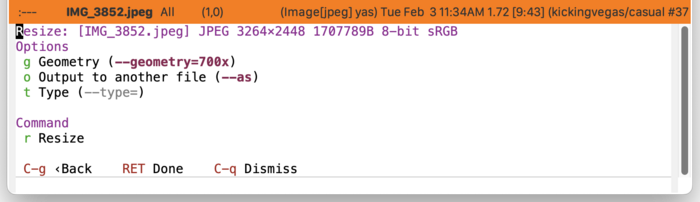
Image Resize Options 
- (g) Geometry - ImageMagick specifier for the resize geometry.
- (o) Output to another file - If enabled, then the user will be prompted for a different output file, else it will irreversibly update the current image file.
- (t) Type - Specify if adaptive or interpolative resizing should be used. If nothing is specified then standard resizing is used.
5.18.2.2 Image Settings 
The menu casual-image-settings-tmenu provides access to different image-mode settings.
5.18.2.3 Image Unicode Symbol Support 
By enabling “u Use Unicode Symbols” from the Settings menu, Casual Image will use Unicode symbols as appropriate in its menus.
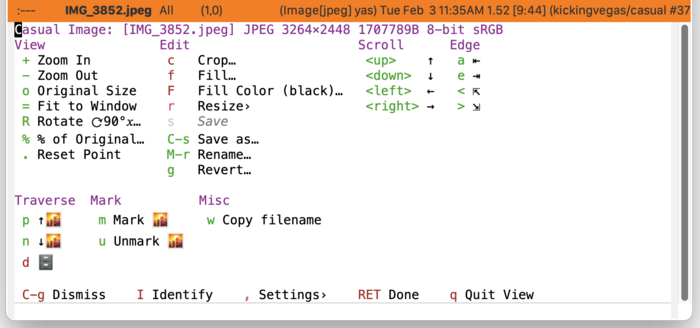
For more info on using Unicode symbols, please refer to UX Conventions.
5.18.2.4 Image Mode Command Naming 
Casual Image makes a number of opinionated changes to the naming of commands provided by image-mode.
The table below shows the mapping between names used by Casual to commands provided by image-mode.
| Casual Name | Image Mode Name | Notes |
|---|---|---|
| Zoom In | image-increase-size | “Zoom” is more commonly used. |
| Zoom Out | image-decrease-size | “Zoom” is more commonly used. |
| Original Size | image-transform-reset-to-original | Using a more concise name. |
| Fit to Window | image-transform-fit-to-window | Using a more concise name. |
| Rotate Clockwise 90°x | image-transform-set-rotation | Rotation command is absolute and only works in increments of 90°. |
| % of Original | image-transform-set-percent | Percent command is absolute in that it computes from the original image size. |
| Crop | image-crop | Command modifies image. |
| Fill | image-cut | Command modifies image. This command is primarily a fill operation, so is renamed appropriately. |
| Set Fill Color | image-cut-color | This variable supports a fill operation, so is renamed appropriately. |
| Save | save-buffer | Saves modified image file. |
| Save as | image-save | Command to save mutated image as another file via a mini-buffer prompt. |
| Rename | rename-visited-file | Renames the current image file. |
| Revert | revert-buffer | Reverts the current image file. |
| Scroll Up | image-previous-line | Rename to use arrow key direction. |
| Scroll Down | image-next-line | Rename to use arrow key direction. |
| Scroll Left | image-backward-hscroll | Rename to use arrow key direction. |
| Scroll Right | image-forward-hscroll | Rename to use arrow key direction. |
| Left Edge | image-bol | Rename to use better descriptive term. |
| Right Edge | image-eol | Rename to use better descriptive term. |
| Top-left | image-bob | Rename to use better descriptive term. |
| Bottom-right | image-eob | Rename to use better descriptive term. |
| Previous Image | image-previous-file | Visit the preceding image in the same directory as the current file. |
| Next Image | image-next-file | Visit the next image in the same directory as the current file. |
| Mark Image | image-mode-mark-file | Mark the current file in the appropriate Dired buffer(s). |
| Unmark Image | image-mode-unmark-file | Unmark the current file in the appropriate Dired buffer(s). |
| Copy filename | image-mode-copy-file-name-as-kill | Push the currently visited file name onto the kill ring. |
5.19 Info 
Casual Info (library: casual-info) is a user interface for the Emacs Info Reader.
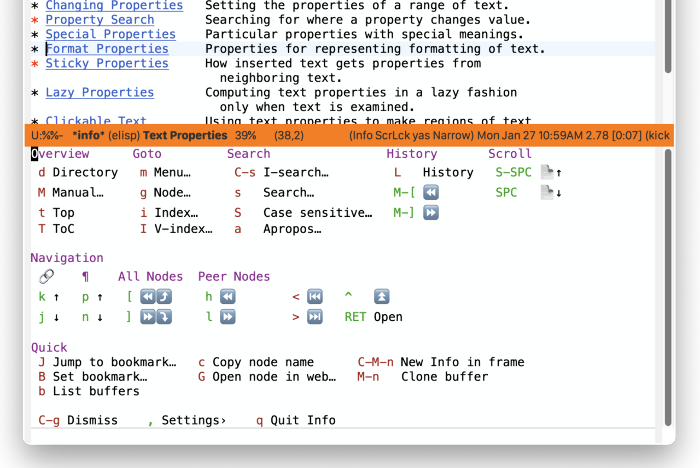
5.19.1 Info Install 
The main menu for Casual Info is casual-info-tmenu. Bind this menu in the keymap Info-mode-map as follows in your initialization file.
(keymap-set Info-mode-map "C-o" #'casual-info-tmenu)
While not required, adding this configuration to your Emacs initialization file will synchronize keybindings between Casual Info and the Info reader. A nice visual improvement is to use hl-line-mode to highlight the line where the cursor is at. Enabling scroll-lock-mode will enable scrolling the buffer for content that is larger than its window size with the navigation keys.
;; # Info
;; Use web-browser history navigation bindings
(keymap-set Info-mode-map "M-[" #'Info-history-back)
(keymap-set Info-mode-map "M-]" #'Info-history-forward)
;; Bind p and n to paragraph navigation
(keymap-set Info-mode-map "p" #'casual-info-browse-backward-paragraph)
(keymap-set Info-mode-map "n" #'casual-info-browse-forward-paragraph)
;; Bind h and l to navigate to previous and next nodes
;; Bind j and k to navigate to next and previous references
(keymap-set Info-mode-map "h" #'Info-prev)
(keymap-set Info-mode-map "j" #'Info-next-reference)
(keymap-set Info-mode-map "k" #'Info-prev-reference)
(keymap-set Info-mode-map "l" #'Info-next)
;; Bind / to search
(keymap-set Info-mode-map "/" #'Info-search)
;; Set Bookmark
(keymap-set Info-mode-map "B" #'bookmark-set)

(add-hook 'Info-mode-hook #'hl-line-mode)
(add-hook 'Info-mode-hook #'scroll-lock-mode)
5.19.2 Info Usage 
Invoke M-x info to launch the Info reader. Move the point inside the Info window and invoke C-o (or a binding of your choosing) to launch the Casual Info menu.
The main menu for Casual Info is organized into the following sections:
- Overview
Commands that navigate you to a starting point in the info documentation.
- Goto
Commands that have you specify where to goto in the structure of an Info document.
- Search
Commands for searching Info.
- History
Commands related to the history of pages (nodes) navigated to in Info. Note that these commands should not be confused with structural navigation.
- Scroll
Commands to scroll down or up the current Info page.
- Navigation
Command related to structurally navigating an Info document. Note that these commands should not be confused with historical navigation.
- Quick
Miscellaneous commands for working with an Info document. Included are commands for bookmarks, copying the current node name, and cloning the buffer.
Info Unicode Symbol Support 
By enabling “u Use Unicode Symbols” from the Settings menu, Casual Info will use Unicode symbols as appropriate in its menus.
For more info on using Unicode symbols, please refer to UX Conventions.
5.20 I-Search 
Casual I-Search (library: casual-isearch) is a user interface for Emacs Incremental Search (emacs#Incremental Search).
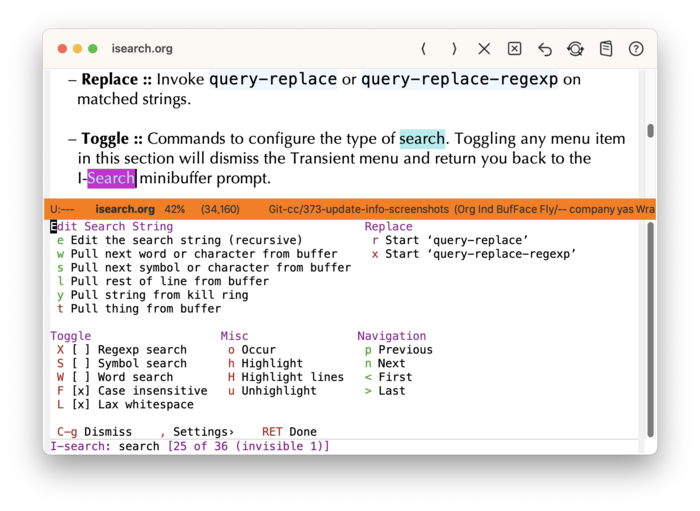
5.20.1 I-Search Install 
The main menu for Casual I-Search is casual-isearch-tmenu. Bind this menu to C-o (or your binding of preference) in the keymap isearch-mode-map as follows in your initialization file.
(keymap-set isearch-mode-map "C-o" #'casual-isearch-tmenu)
5.20.2 I-Search Usage 
The main menu for Casual I-Search is organized into the following sections:
- Edit Search String
Commands to edit the search string. The type/extent of the string (word, symbol, line, thing) can be specified here.
- Replace
Invoke
query-replaceorquery-replace-regexpon matched strings.- Toggle
Commands to configure the type of search. Toggling any menu item in this section will dismiss the Transient menu and return you back to the I-Search minibuffer prompt.
- Misc
Miscellaneous commands. From here the search string can be fed into
occuror be highlighted.- Navigation
Navigation commands for matched strings.
When in search mode (typically via the keybinding C-s or C-r), pressing the keybinding C-o (or binding of your preference) will raise the Transient menu casual-isearch-tmenu. Once raised, only the I-Search commands in the Toggle, Replace, and Misc sections will automatically dismiss the menu when selected. All other I-Search commands will not dismiss the menu.
Use C-g to dismiss this Transient menu.
I-Search Settings 
The menu casual-isearch-settings-tmenu provides access to different I-Search settings.

I-Search Unicode Symbol Support 
By enabling “u Use Unicode Symbols” from the Settings menu, Casual I-Search will use Unicode symbols as appropriate in its menus.
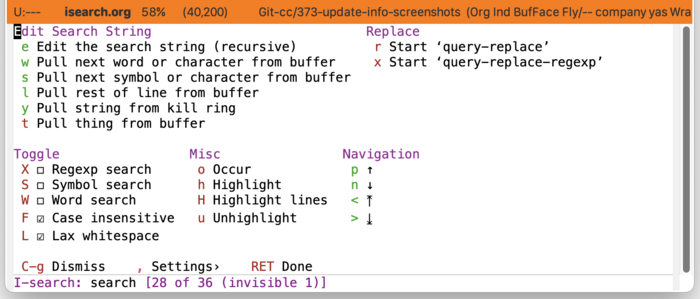
For more info on using Unicode symbols, please refer to UX Conventions.
5.21 Ispell 
Casual Ispell is a user interface for the Emacs spell checker Ispell (emacs#Spelling).
5.21.1 Ispell Install 
If you have Casual EditKit installed then access to the Transient casual-ispell-tmenu is available from casual-editkit-main-tmenu.
casual-ispell-tmenu can also be bound to a mode of preference. Shown below is a recommended configuration to use in an initialization file.
(keymap-set prog-mode-map "C-c s" #'casual-ispell-tmenu)
(keymap-set text-mode-map "C-c s" #'casual-ispell-tmenu)
(keymap-set bibtex-mode-map "C-c s" #'casual-ispell-tmenu)
(keymap-set conf-mode-map "C-c s" #'casual-ispell-tmenu)
5.21.2 Ispell Usage 
From either the Transient casual-editkit-main-tmenu or via key binding C-c s, invoke the menu casual-ispell-tmenu to get menu of commands shown below:
If no text (region) is selected, then Ispell will behave with respect to the cursor (point) position.
For certain modes, casual-ispell-tmenu will add the following two menu items:
- s String/Comment
- c Comments & Strings
The modes are determined by the customizable variable casual-ispell-comment-or-string-predicate which references a predicate function. By default this function is casual-ispell-comment-or-string-p which tests the major mode to be one of the following:
prog-modebibtex-modeconf-mode
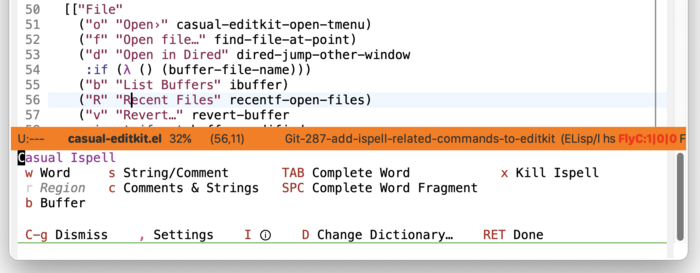
5.22 Make 
Casual Make (library: casual-make) is a user interface for make-mode, a mode for editing a Makefile.
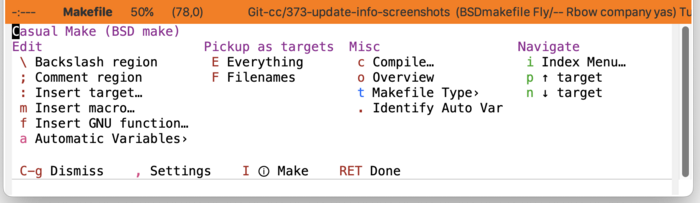
5.22.1 Make Install 
In your initialization file, bind the Transient casual-make-tmenu to your key binding of preference. Two suggested bindings are M-m or C-c m.
(keymap-set makefile-mode-map "M-m" #'casual-make-tmenu)
The binding M-m is intended to complement the binding C-o used by EditKit.
5.22.2 Make Usage 
It is recommended that some basic knowledge of the make command is known before using Casual Make.
When in a Makefile buffer, use M-m (or your binding of choice) to raise the menu casual-make-tmenu. You will be presented with a menu with the following sections:
- Edit
Commands for editing the makefile. Note that the backslash and comment commands require a region to be selected.
- Pickup as targets
Commands for synchronizing
make-modewith the target definitions in the makefile. Use these commands to refresh the known list of targets.- Misc
Miscellaneous commands related to working with a makefile.
- Navigate
Commands to support navigation within the makefile.
Unless you edit makefiles frequently, it is unlikely to recall what an automatic variable declaration means. Casual Make provides the command casual-make-identify-autovar-region to identify a region-selected automatic variable via the menu item “. Identify Auto Var” in casual-make-tmenu. A short description of the automatic variable is shown in the mini-buffer.
5.22.2.1 Makefile Type Selection 
As there are different variants of make and makefile formats, you can configure the mode for different specific makefile types. This can be done by selecting “t Makefile Type›” in casual-make-tmenu.

The symbol for this menu is casual-make-mode-select-tmenu.
5.22.2.2 Automatic Variables 
Casual Make provides a menu to enter GNU Make-style automatic variables. Note that each keybinding is identical to the automatic variable it represents to both reinforce its declaration and to avoid making another mapping. This menu is available from the menu item “a Automatic Variables›” in casual-make-tmenu.
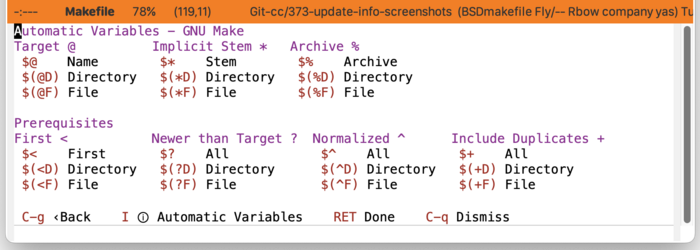
The symbol for this menu is casual-make-automatic-variables-tmenu.
5.22.2.3 Make Unicode Symbol Support 
By enabling “u Use Unicode Symbols” from the Settings menu, Casual Make will use Unicode symbols as appropriate in its menus.
For more info on using Unicode symbols, please refer to UX Conventions.
5.23 Man 
Casual Man (library: casual-man) is a user interface for Man-mode, a Man page reader.
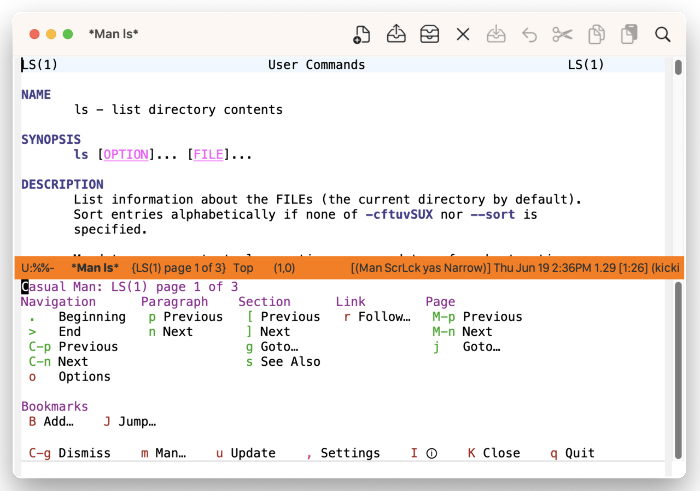
5.23.1 Man Install 
In your initialization file, bind the Transient casual-man-tmenu to your key binding of preference.
(keymap-set Man-mode-map "C-o" #'casual-man-tmenu)
casual-man-tmenu deviates from the default bindings of Man-mode-map as shown in the table below.
| Default Binding | Casual Binding | Command | Notes |
|---|---|---|---|
| n | [ | Man-previous-section | Make consistent with Casual Dired and IBuffer behavior. |
| p | ] | Man-next-section | Make consistent with Casual Dired and IBuffer behavior. |
| k | K | Man-kill | Reserve k for navigation. |
| k | previous-line | ||
| j | next-line | ||
| n | casual-lib-browser-forward-paragraph | Use to navigate paragraph forward. | |
| p | casual-lib-browser-backward-paragraph | Use to navigate paragraph backward. |
The following keybindings are recommended to support consistent behavior between Man-mode and casual-man-tmenu.
(keymap-set Man-mode-map "n" #'casual-lib-browse-forward-paragraph)
(keymap-set Man-mode-map "p" #'casual-lib-browse-backward-paragraph)
(keymap-set Man-mode-map "[" #'Man-previous-section)
(keymap-set Man-mode-map "]" #'Man-next-section)
(keymap-set Man-mode-map "j" #'next-line)
(keymap-set Man-mode-map "k" #'previous-line)
(keymap-set Man-mode-map "K" #'Man-kill)
(keymap-set Man-mode-map "o" #'casual-man-occur-options)
5.23.2 Man Usage 
The Man page reader can be invoked via M-x man, where the user is prompted for a search key. This search key is typically the name of a command that has an associated Man page. In the Man page window, pressing C-o (or your binding of preference) will raise the menu casual-man-tmenu.
The following sections are offered in the menu:
- Navigation
Navigation commands with the document.
- Paragraph
Navigation commands by paragraph.
- Section
Navigation commands by section.
- Link
Jump to other Man pages referenced in the current Man page.
- Page
If the Man page reader is configured to display all manual pages for a given search key, navigation commands for multiple pages is provided.
Options Navigation 
casual-man-tmenu provides the menu item o which runs the command casual-man-occur-options. This will invoke occur with a regexp that searches for command line options (for example, “–foo”, “-a”) that can be navigated via the occur interface.
Man Settings 
By default, the Man page reader will not display all manual pages for given search key. This can be changed in the Settings menu casual-man-settings-tmenu that can be invoked by pressing , in casual-man-tmenu.
Press ‘s’ and configure Man-switches to have the value “-a” to get all manual pages.
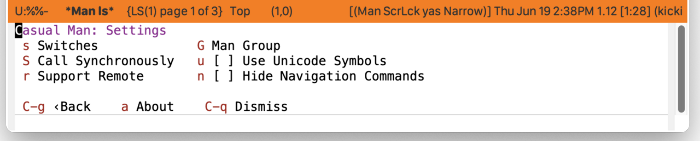
Man Unicode Symbol Support 
By enabling “u Use Unicode Symbols” from the Settings menu, Casual Man will use Unicode symbols as appropriate in its menus.
For more info on using Unicode symbols, please refer to UX Conventions.
5.24 Org 
Casual Org (library: casual-org) is a keyboard-driven user interface for Org mode (org#Top). It endeavors to provide context-sensitive assistance by providing structure-related commands based on where the point (cursor) is in an Org document.
The Casual Org main menu (casual-org-tmenu) supports basic Emacs-style point navigation (emacs#Moving Point) in the buffer while the menu is still raised. As the point is moved, the menu will adjust to provide structure-related commands.
For example, if the point is in an Org headline, the following menu is shown with headline-related commands at the top of the menu.
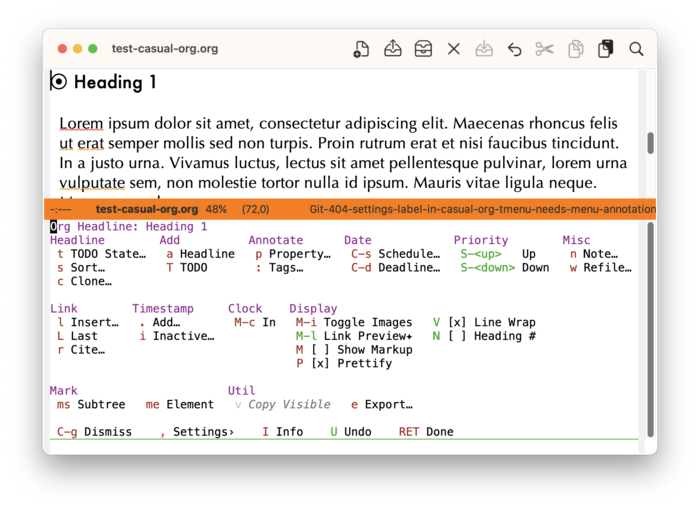
If the point is moved to a table section, the upper part of the menu adjusts to provide table-related commands.
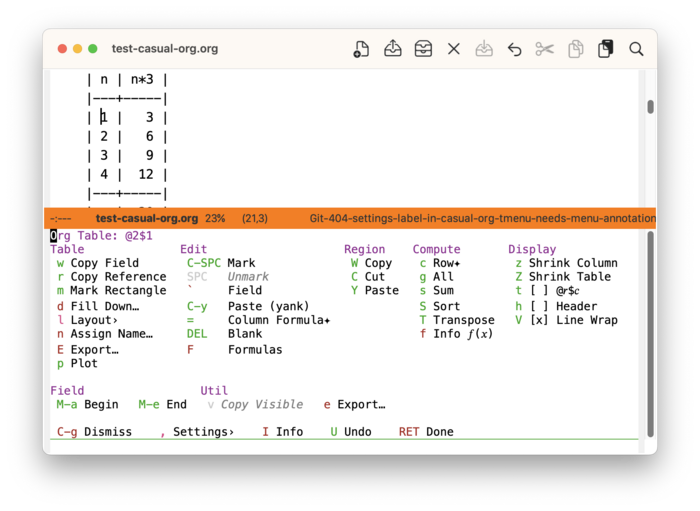
Casual Org has no intent to exhaustively support all Org commands. Rather, Casual Org is an opinionated UX design exercise in providing a curated set of context-sensitive commands to a user.
5.24.1 Org Install 
In your initialization file, bind the Transient menus casual-org-tmenu and casual-org-table-fedit-tmenu to your key binding of preference.
(keymap-set org-mode-map "M-m" #'casual-org-tmenu)
(keymap-set org-table-fedit-map "M-m" #'casual-org-table-fedit-tmenu)
The binding M-m is intended to complement the binding C-o used by EditKit.
5.24.2 Org Usage 
Usage of Casual Org is primarily done through the Transient menu casual-org-tmenu. This menu dynamically adjusts with respect to where the point (cursor) is in an Org document’s structure (org#Document Structure). For example, if the point is in a headline the menu displayed will be different from that of a table.
Based on where the point is in an Org buffer, the following variants of casual-org-tmenu are supported:
- Headline
- Body
- List
- Table
- Block
- Keyword
- Property Drawer
- Property
- Drawer
- Clock Log
Many of the menu variants have a common set of command sections. These sections include:
- Link
Commands related to Org links and citation.
- Timestamp
Timestamp-related commands.
- Clock
Clock-related commands.
- Display
Display-related commands.
- Mark
Structural-marking commands.
- Util
Org utility commands.
Note that not all of these command sections are offered in all menu variants. This is because the design intent for Casual Org is to constrain choice based on context.
Navigation 
The menus in the Casual Org package (casual-org) are designed to allow for navigation of the current Org buffer using key bindings not used by the Casual menu. This means that basic Emacs point (cursor) navigation not involving the arrow keys will be available (emacs#Moving Point). It is also possible to inadvertently insert text when a Casual Org menu is raised. Accidental changes can be undone using the “U Undo” command.
To use Casual Org effectively, it is recommended that the user is familiar with Org outline editing (org#Structure Editing).
- Org Headline
- Org Body
- Org List
- Org Table
- Org Block
- Org Keyword
- Org Property Drawer
- Org Property
- Org Drawer
- Org Clock Log
- Org Settings
5.24.2.1 Org Headline 
When the point is in a headline (org#Headlines) the following command sections are displayed in casual-org-tmenu:
- Headline
Commands that operate on a headline.
- Add
Commands that add a headline.
- Annotate
Commands that add annotations (metadata) to a headline.
- Date
Date-related commands.
- Priority
Prioritization-related commands.
- Misc
Miscellaneous commands.
5.24.2.2 Org Body 
If the point is in a part of an Org document that is not considered structure, this menu variant of casual-org-tmenu is displayed.
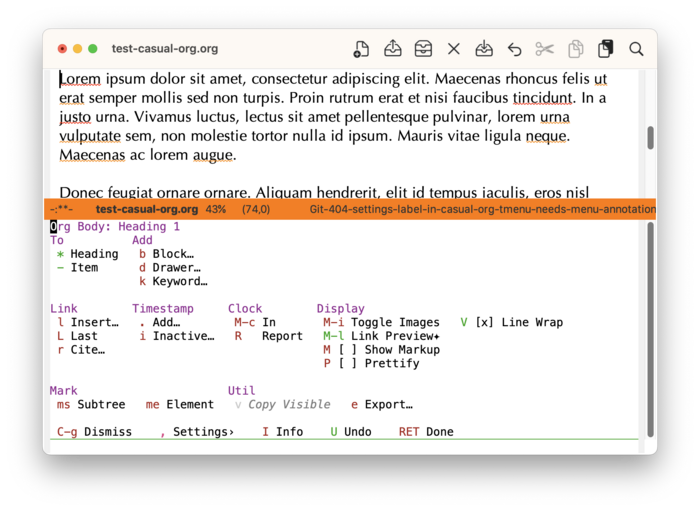
Variant-specific command sections provided are:
- To
Commands to convert the Org element under point to either a heading or a list.
- Add
Commands to add either a block, drawer, or keyword.
5.24.2.3 Org List 
When the point is in a list item (org#Plain Lists), the following list-related commands are displayed in casual-org-tmenu:
- a Add
Inserts a list item.
- b To Checkbox
Converts a list item to a checkbox.
- c Cycle
Changes the list style from a cycle of styles.
- s Sort
Sorts the list given user-specified criteria.
If the point is at the very start of the list, then then certain commands like “b To Checkbox” will affect all items in the list.
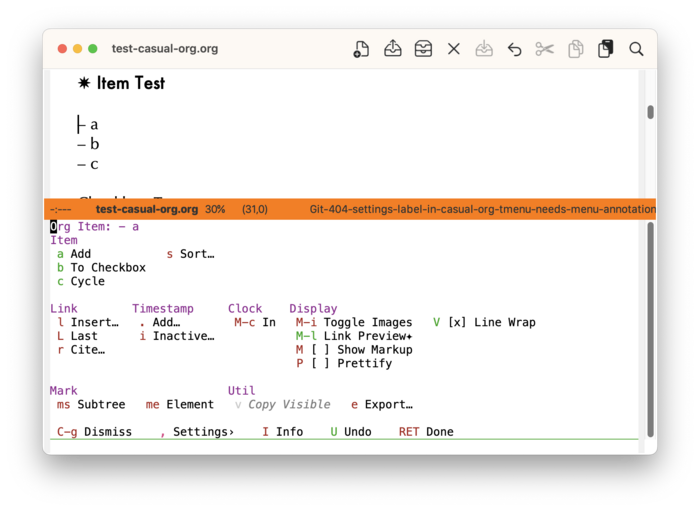
Checkbox 
When an item is converted to a checkbox, the heading of the section changes from “Item” to “Checkbox”. The following two commands are added:
- C-c Toggle
Toggle the checkbox from an unchecked (
[ ]) to a checked ([X]) state or vice-versa.- - In Progress
Change a checkbox from an unchecked (
[ ]) to an in-progress ([-]) state. Use the “C-c Toggle” command to reset from the in-progress state.
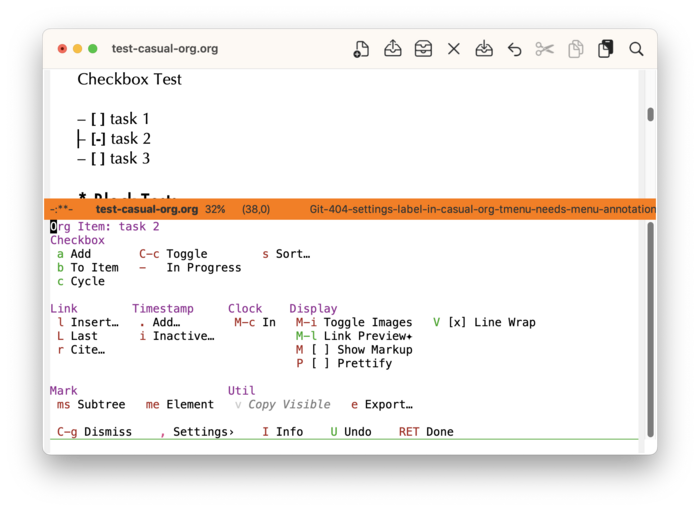
Use the “b To Item” command to revert a checkbox back to a plain item.
5.24.2.4 Org Table 
When the point is in a table (org#Tables) the following sections are displayed in casual-org-tmenu:
- Table
Miscellaneous table-related commands.
- Edit
Table-specific editing commands.
- Region
Region-specific editing commands.
- Compute
Table-specific compute commands.
- Display
Table-specific display commands.
Table Formulas (TBLFM) 
If the point is on a TBLFM keyword (org#Field and range formulas), then the following menu variant of casual-org-tmenu is shown.
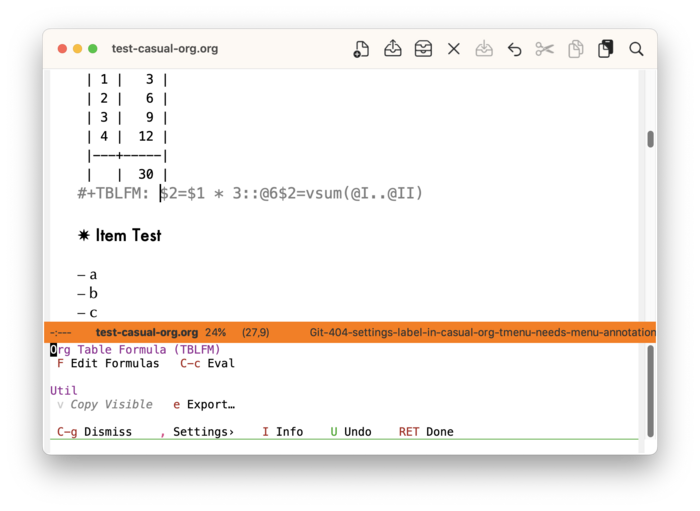
Org Table Layout 
From the Table section in casual-org-tmenu, selecting “l Layout” will raise the table layout menu (casual-org-table-structure-tmenu). Use this menu to make structural edits to the table.
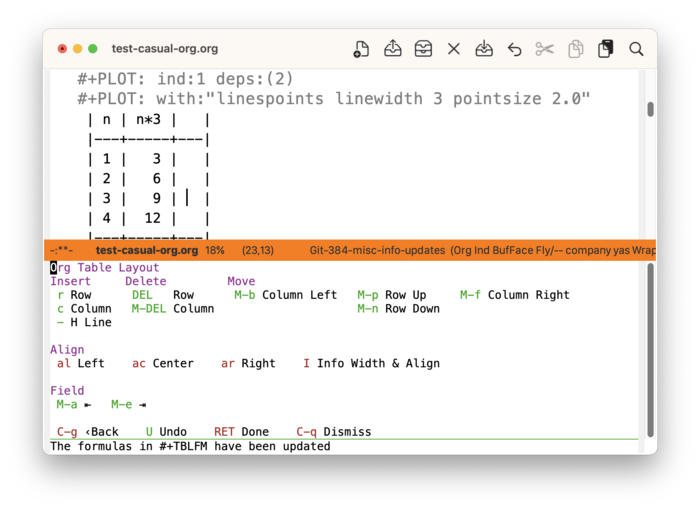
Org Table Formula Edit 
When editing formulas for a table, the menu casual-org-table-fedit-tmenu can be raised to provide assistance with table references.
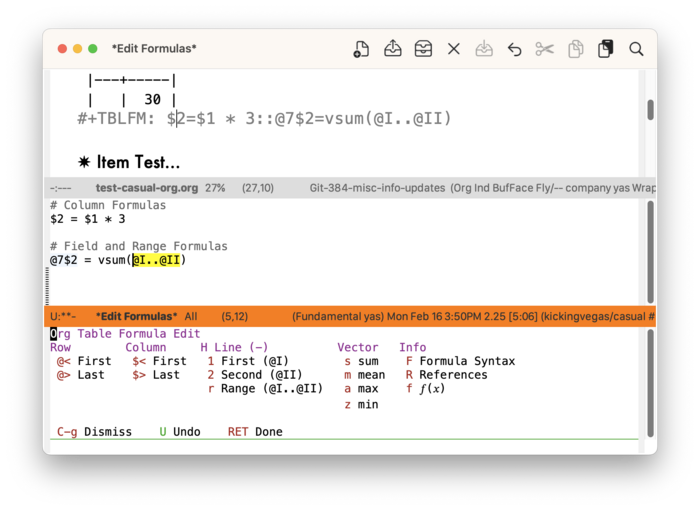
5.24.2.5 Org Block 
When the point is in a block (org#Blocks) the following variant is displayed in casual-org-tmenu:
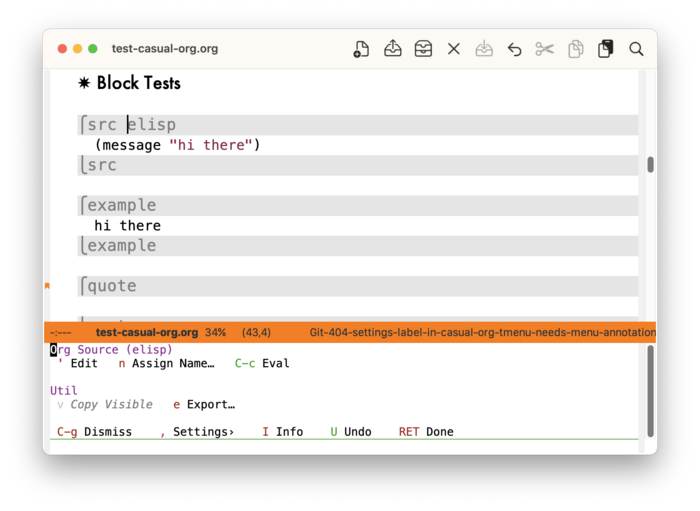
Numerous different block types are recognized by casual-org-tmenu. They are:
- Source (
#+BEGIN_SRC) - Example (
#+BEGIN_EXAMPLE) - Quote (
#+BEGIN_QUOTE) - Export (
#+BEGIN_EXPORT) - Center (
#+BEGIN_CENTER) - Verse (
#+BEGIN_VERSE)
Org In Source Block 
If the point is within an Org source block, then the following menu variant is shown.
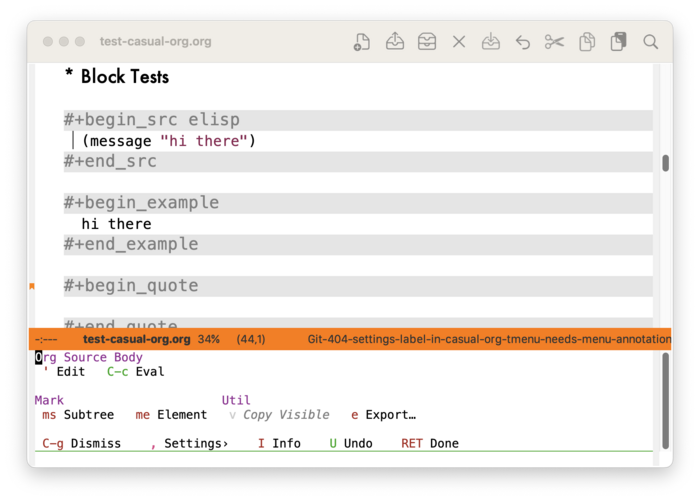
5.24.2.6 Org Keyword 
When the point is in an Org keyword the following variant is displayed in casual-org-tmenu:
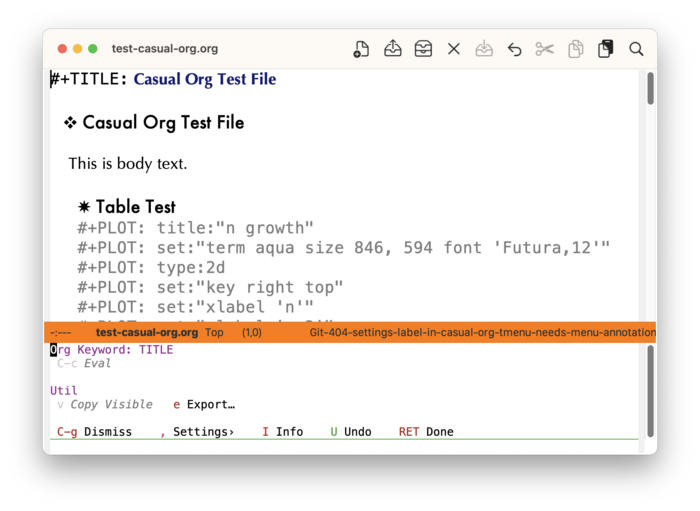
5.24.2.7 Org Property Drawer 
This menu variant of casual-org-tmenu is shown when the point is on a property drawer (org#Properties and Columns).
With this menu, one can add a property.
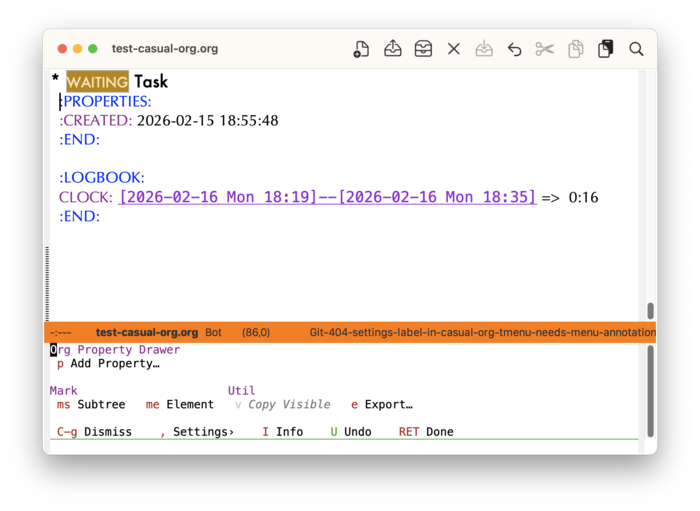
5.24.2.8 Org Property 
This menu variant of casual-org-tmenu is shown when the point is on a property (org#Property Syntax).
With this menu, one can either add another property or perform an action on the current property.
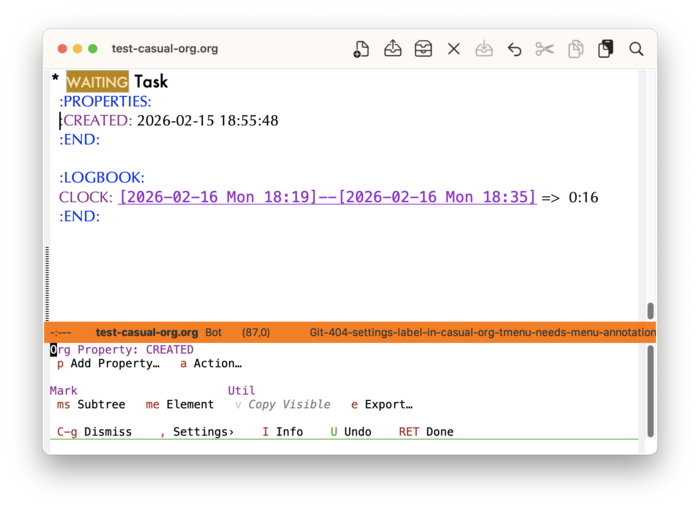
5.24.2.9 Org Drawer 
This menu variant of casual-org-tmenu is shown when the point is on a drawer (org#Drawers).
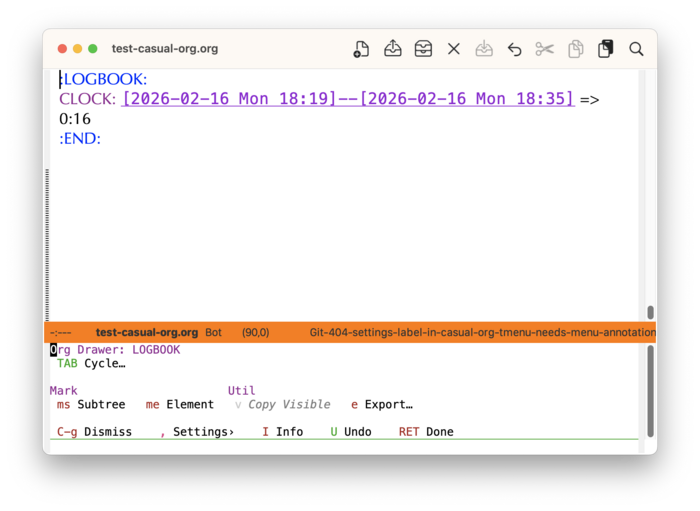
5.24.2.10 Org Clock Log 
This menu variant of casual-org-tmenu is shown when the point is on a clock log (org#Clocking commands).
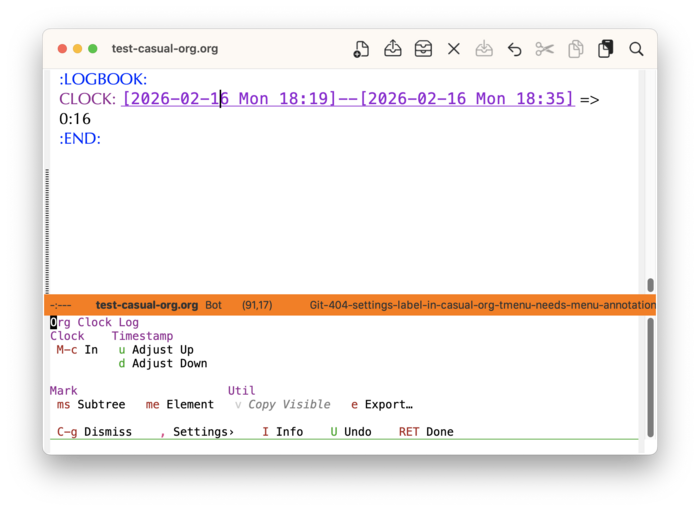
Two command sections are provided:
- Clock
Clock in or out of the current item.
- Timestamp
If the point is on an Org timestamp, commands to adjust up or down a timestamp component (e.g. year, month, day) is provided.
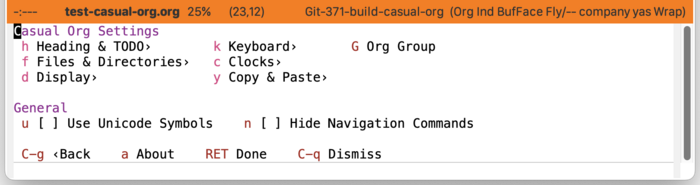
5.25 RE-Builder 
Casual RE-Builder (library: casual-re-builder) is a user interface for RE-Builder.
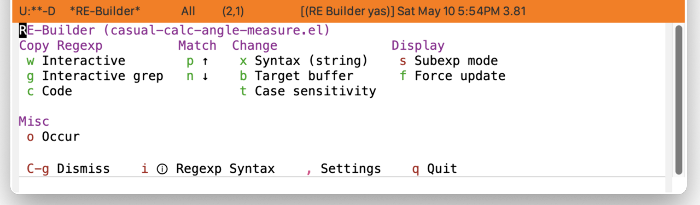
5.25.1 RE-Builder Install 
The main menu for Casual RE-Builder is casual-re-builder-tmenu. Bind this menu to your preference in the keymaps reb-mode-map and reb-lisp-mode-map as follows in your initialization file.
(keymap-set reb-mode-map "C-o" #'casual-re-builder-tmenu)
(keymap-set reb-lisp-mode-map "C-o" #'casual-re-builder-tmenu)
5.25.2 RE-Builder Usage 
When the command re-builder is invoked, a buffer named “✳︎RE-Builder✳︎” is created. Activate Casual RE-Builder with the binding {{{kbd(C-o}}} (or one of your preference).
At the top of the menu shows the title “RE-Builder” with the target buffer enclosed in parenthesis. The regexp pattern will be applied to the target buffer. The target buffer can be changed with the “b Target buffer” menu item.
Emacs supports three different regexp syntax: 1) read, 2) string, 3) Rx. Use the “x Syntax” menu item to alter it. The current syntax is shown in parenthesis.
If multiple sub-expressions are in the regexp pattern, then they can be observed via the “s Subexp mode” menu item.
If the regexp pattern entered in “✳︎RE-Builder✳︎” finds multiple matches, a match can be navigated to via the “p Previous” and “n Next” menu items.
Exporting the Regexp Pattern 
Once a desired regexp pattern is defined, there are two menu items that can be used to export (copy) it to the kill-ring for further use.
- “w Interactive” will copy the regexp to the kill-ring so that it can be yanked in an interactive command that requires a regexp (e.g.
query-replace-regexp).- This can only be used when the regexp syntax is set to
string. - ❗️When yanking (typically C-y) a regexp into an interactive prompt, you must have the point/focus in the minibuffer prompt (typically via mouse). Otherwise the desired content can be altered with extra escaping.
- This can only be used when the regexp syntax is set to
- “c Code” will copy the regexp to the kill-ring so that it can be yanked into a Elisp code that requires a regexp argument.
- “g Interactive grep” will copy the regexp so that it can be used with command that take a GNU grep regex argument.
- Example commands that do this are
dired-do-find-regexpanddired-do-find-regexp-and-replace. - This command presumes that you have GNU grep installed and configured for use by Emacs.
- ❗️At current this is an experimental feature. The regexp exported from RE-Builder may not work. If so please report an issue describing the desired regexp and the target text.
- This can only be used when the regexp syntax is set to
string.
- Example commands that do this are
Regexp Syntax Help 
The menu item i will invoke the Info page for regexp syntax with respect to the current syntax type.
Quitting RE-Builder 
Select “q Quit” to exit the RE-Builder tool.
RE-Builder Settings 
The menu casual-re-builder-settings-tmenu provides access to different RE-Builder settings.
RE-Builder Unicode Symbol Support 
By enabling “u Use Unicode Symbols” from the Settings menu, Casual RE-Builder will use Unicode symbols as appropriate in its menus.
For more info on using Unicode symbols, please refer to UX Conventions.
5.26 Timezone 
Casual Timezone is a library of commands to work with different time zones. Answer the questions “what time is it over there?” or conversely “what is the time over there, here?” with ease using this. Its top level library is casual-timezone. Commands from Casual Timezone are found in the menu casual-timezone-tmenu, which itself is integrated into the menu casual-editkit-tools-tmenu.
Casual Timezone only supports systems that have a tz database.
Casual Timezone supports viewing multiple time zones in a tabular view with the command casual-timezone-planner as shown below:
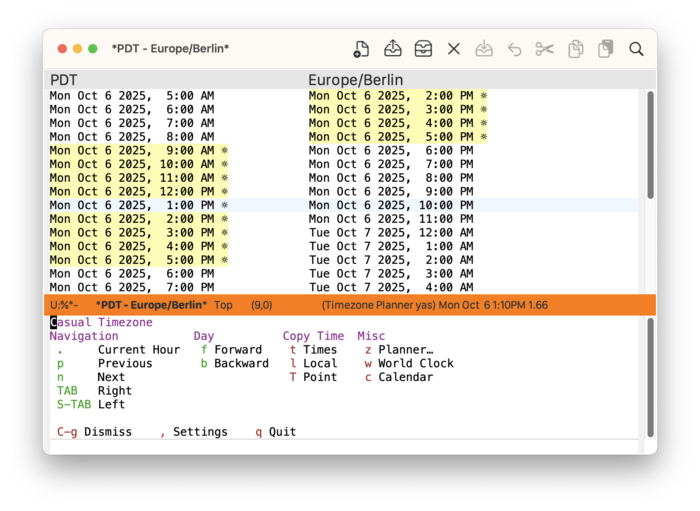
5.26.1 Timezone Install 
Casual Timezone is configured as part of Casual EditKit in the Tools menu (casual-editkit-tools-tmenu). Refer to the EditKit Install section for instructions on how to install it.
The main menu for Casual Timezone can be invoked directly using M-x casual-timezone-tmenu.
5.26.2 Timezone Usage 
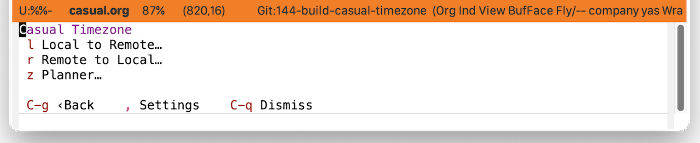
The main menu for Casual Timezone (casual-timezone-tmenu) offers the following commands:
casual-timezone-local-time-to-remote(menu binding:l) will convert a local date to its equivalent in remote time zone.casual-timezone-remote-time-to-local(menu binding:r) will convert a date in a remote time zone to its local equivalent.casual-timezone-planner(menu binding:z) will generate a table comparing hours between the local and a remote time zone on a certain date. Multiple remote time zones can be specified.
Timezone Planner 
The command casual-timezone-planner will prompt the user for one or more time zones and a date to compare in tabular form the local time with the zones selected. Multiple time zones are comma-separated.
In this table, the point can be navigated using the p, n, TAB, and S-TAB bindings.
Use the T binding to copy the timestamp under the current point to the kill-ring. The t binding will copy all timestamps on the current line to the kill-ring.
- Timezone Formatting
- Planner Configuration
- Zoneinfo Database
- Timezone Settings
- Timezone Unicode Symbol Support
5.26.2.1 Timezone Formatting 
The formatted representation of time in Casual Timezone is set by the following customizable variables:
casual-timezone-datestamp-formatcasual-timezone-convert-datestamp-format
The format specification of these variables conforms to the specification defined in format-time-string.
The following table shows which format variable applies to which command.
| Command | Format |
|---|---|
casual-timezone-planner | casual-timezone-datestamp-format |
casual-timezone-local-time-to-remote | casual-timezone-convert-datestamp-format |
casual-timezone-remote-time-to-local | casual-timezone-convert-datestamp-format |
These variables can be customized via the Transient menu casual-timezone-settings-tmenu.
5.26.2.2 Planner Configuration 
The following variables can control how working hours are displayed in the timezone planner.
casual-timezone-working-hours-rangewill set the range (start, stop) of working hours. The values are integers that map to 24-hour time (0..23).casual-timezone-working-hour-glyphwill set the glyph used to denote a working hour (default is ☼).casual-timezone-planner-working-highlightwill set the face used to highlight a working hour.
These variables can be customized via the Transient menu casual-timezone-settings-tmenu.
5.26.2.3 Zoneinfo Database 
The variable casual-timezone-zone-info-database is default set to the path “/usr/share/zoneinfo/tzdata.zi”. Customize this variable if the zoneinfo database is located at a different path.
5.26.2.4 Timezone Settings 
The menu casual-timezone-settings-tmenu provides access to different Casual Timezone settings.
5.26.2.5 Timezone Unicode Symbol Support 
By enabling “u Use Unicode Symbols” from the Settings menu, Casual Timezone will use Unicode symbols as appropriate in its menus.
For more info on using Unicode symbols, please refer to UX Conventions.
6 Customization 
Users who wish to extend or alter existing Casual menus can do so via the mechanisms offered by the Transient package.
7 Feedback & Discussion 
Please report any feedback about Casual to the issue tracker on GitHub.
To participate in general discussion about using Casual, please join the discussion group.
8 Sponsorship 
It costs money to make, enhance, and maintain Casual as ideologically free software. If you enjoy using Casual, please buy me a coffee to help support its development and maintenance.
9 About Casual 
Casual was conceived and crafted by Charles Choi in San Francisco, California.
Thank you for using Casual.
Always choose love.
10 Acknowledgments 
A heartfelt thanks to all the contributors to Transient, Magit, Org Mode, and Emacs.
This package would not be possible without your efforts.
11 Main Index 
Index for this user guide.
| Jump to: | A B C D E F G H I K M N O P R S T U W |
|---|
| Jump to: | A B C D E F G H I K M N O P R S T U W |
|---|
12 Variable Index 
Variables, functions, commands, and menus referenced by this user guide.